
Your emails are now in the cloud, specifically Microsoft 365 – Exchange Online (EXO). Now what? For many organizations emails are the heart and soul of communication and past records and they use the same On-premises methods to protect emails in the cloud. Regardless, defending it from bad actors is a must because this is the most common way a breach starts. A phishing email and a user to open it, click on the attachment, and the payload will start doing its task ending up in a disaster!
- A Little About BEC – Business Email Compromise
- Let’s Dive into the Attack Kill Chain
- Where to Start From?
- What do I Need to Implement?
- Microsoft Intune – Enhanced Outlook Client Security
- Defender for Office 365
- Defender for Cloud Apps
- Threat Hunting Alerts in Defender Advanced Threat Hunting
- Wrapping Up
The main focus of this article is to understand the controls you can introduce to your environment as an all-round approach to proactively and safely detonate Exchange Online-related malicious activities.
This is a combination of some essential features and how to use them together to protect Exchange Online from bad actors. Chances are you may already have these features available and it’s waiting to be configured.
It is important that you need to consider protecting and setting up controls in both Client-end and admin-end of Exchange Online because while mainly the attack kill chain will start from the user end, and if the Exchange Online is not protected, the bad actors can easily take control of what they are after.
A Little About BEC – Business Email Compromise
Business Email Compromise is the most popular way the bad actors to get into the system to make damage to your business. These attacks are all about stealing your valuable info or making users pay a huge amount of money to a rouge account.
They use different and clever tactics to get into the system. It is not only the URLs or attachments that lead to malicious payloads, but the way they articulate emails to visually look alike. User impressions, domain impressions are harder to notice in the 1st glance, but User Awareness and User Training and help a lot in those situations. It helps them to understand not only that the content of the email looks suspicious, but not fall for the look-alike stuff like the sender name, domain, etc.
SPF, DMARC, DKIM are some features you can implement to protect the emails and guard from domain spoofing etc., but I want to discuss the protection beyond that that will be provided under your current license.
I will discuss about the Mailbox Intelligence features in Defender XDR and how that threat can be mitigated.
Let’s Dive into the Attack Kill Chain
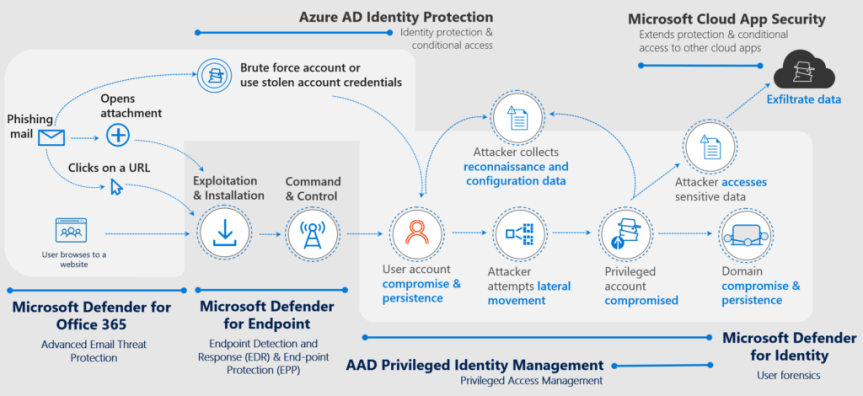
The above illustration shows the most common way bad actors get into the environment and as BEC, these attacks can make a high impact on your business, both financially and legally and this is your “WHY” to protect critical systems with all defences in place. While there are a lot of technical controls involved, there is also a vital part the user needs to play as the attackers are targeting the most standard/ normal users to trick them into clicking on the URLs or opening the attachments.
Where to Start From?
This is where you will be collaborating with other teams to draw a roadmap and a plan to implement the features with the mindset of “Security is a team sport”. As you will see there are a lot of moving parts, and the goal is to build a working solution with the products that you already own. Not to mention these features need to be tested and understand the effect as some changes can disrupt user’s day-to-day work.
Before anything else, planning is essential. What goes first is depending on your situation. However, the key is to map out the things as the features and products are interconnected most of the time. Not to mention understanding what is currently placed (Non-Microsoft products) in the environment to manage Email security and how to gradually replace them with these products.
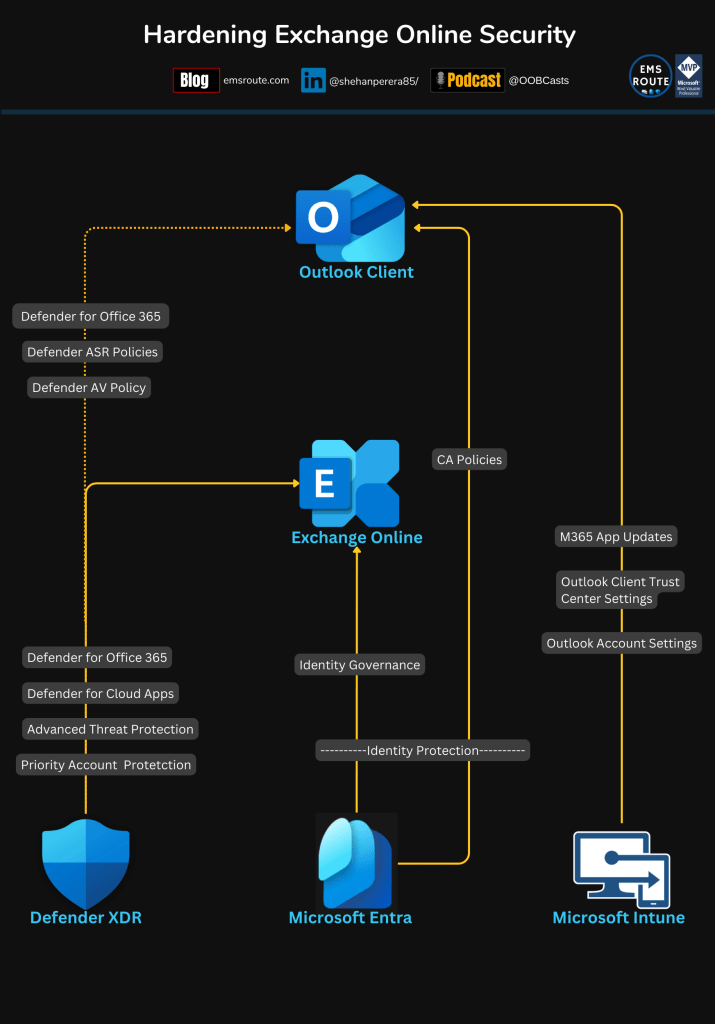
These features that can be enabled to strengthen your Exchange Online Security posture span across 3 main pillars.
- Microsoft Entra
- Microsoft Intune
- Microsoft Defender XDR
If we are going back to the attack kill chain, it’s clear that this starts with the user. A bad actor executing a password spray attack is always a possibility, but if there are Identity controls in place, you can detonate those attacks then and there.
While setting up MFA as the first line of defence, it alone is not able to defend the threats out there. Think about the other Conditional Access Policies (CA Policy) depending on your type of business. If you have a NO BYOD policy, consider setting up a CA Policy to block access to Exchange Online from personal devices. This is where Microsoft Intune comes into the story. If you have devices enrolled into Intune, they will be your corporate devices, and easily segment the devices using Device Filters. Or a CA Policy for devices with a Windows OS to access corporate resources only from the “Entra Hybrid Joined” devices. Then again, use the device filters to block devices that don’t have a modern OS build.
Intune Compliance policies and CA policies are a great combination! The device needs to be compliant to access corporate resources (i.e. User’s mailbox). Even if you are allowing BYODs, you can still set up a compliance policy so the personal devices must be compliant to be able to access Exchange Online and mail.
Defender for Office 365 itself will have all the Email Security related policies that can be set up.
These are just a few of the plethora of security features that Entra, Defender, and Intune offer. I want to show the controls at a high level, so you’d better understand the features and what it does in protecting the Exchange Online.
What do I Need to Implement?
It’s a fact that most of us are busy and don’t have a lot of time to explore these features and for someone new, it will be hard to understand where these features are and what features you need to implement in the first place. Explaining the steps of enabling each feature will make this blog extremely long and I’m sure you will go bored scrolling down. Instead, I want to collate the features and list them down with the Microsoft Learn link so it will give you the process.
| Product | Feature | Reference |
|---|---|---|
| Identity Protection/ CA-Based Identity Protection | Entra ID | https://learn.microsoft.com/en-us/entra/id-protection/overview-identity-protection https://learn.microsoft.com/en-us/entra/id-protection/howto-identity-protection-configure-risk-policies |
| Recommended CA Policies including Multi-Factor Authentication | Entra ID | https://learn.microsoft.com/en-us/security/zero-trust/zero-trust-identity-device-access-policies-exchange#limit-access-to-exchange-online-from-outlook-on-the-web |
| Compliance based Condition Access Policies | Entra ID + Intune | https://learn.microsoft.com/en-us/mem/intune/protect/device-compliance-get-started https://learn.microsoft.com/en-us/mem/intune/protect/device-compliance-get-started#integrate-with-conditional-access |
| Block legacy authentication using CA Policies | Entra ID | https://learn.microsoft.com/en-us/entra/identity/conditional-access/howto-conditional-access-policy-block-legacy |
| Block Downloads Defender for Cloud Apps CA | Entra ID + Defender | https://learn.microsoft.com/en-gb/defender-cloud-apps/proxy-intro-aad#supported-apps-and-clients |
| Enabling PIM for critical Exchange related accounts | Entra ID | https://learn.microsoft.com/en-us/entra/id-governance/privileged-identity-management/pim-deployment-plan EXO related roles available in Entra ID * Exchange Administrator * Exchange Recipient Administrator Other Privileged roles that is connected to EXO * Compliance Administrator * Azure Information Protection Administrator * Security Reader * Security Administrator |
| Block sign-in to shared mailboxes | Admin Center | https://learn.microsoft.com/en-us/microsoft-365/lighthouse/m365-lighthouse-block-signin-shared-mailboxes?view=o365-worldwide |
| Enabling BitLocker | Intune | https://learn.microsoft.com/en-us/mem/intune/protect/encrypt-devices |
| Email client Privacy settings | Intune | Settings Catalog settings * Let Apps Access Email * Let Apps Access Email Force Allow/ Deny These Apps * Let Apps Access Email User In Control Of These Apps * Microsoft Outlook 2016\Security * Microsoft Outlook 2016\Security\Trust Center Defender Settings in Settings Catalog (these settings can be found in Defender AV policies as well) * Allow Email Scanning * Block executable content from email client and webmail |
| Authentication Context for PIM | Entra ID | https://emsroute.com/2023/03/15/how-to-use-auth-context-on-pim-01/ |
Identity Protection
If you have Entra Identity Protection enabled, that will capture Risky users, Risky sign-ins, and Risky apps. In this case, understanding those factors is important because in a password leakage situation, if the bad actor is trying to log in from an IP that has been classified as malicious, it will be notified here and can be used for further automation of block sign-in or prompt the user to reset the password immediately.
- Anonymous IP address usage
- Password spray attacks
- Leaked credentials
- Impossible travel
- etc.
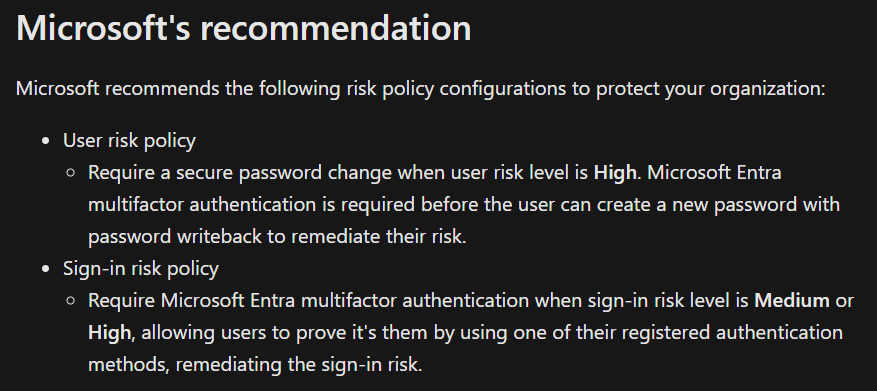
Enabling Risk-based CA Policies gives the admins the ability to act fast get those issues sorted soon and keep the users in a secure state.
Risk is categorized into three levels – Low, Medium, and High and depending on the behavior of the account, the admins can then set up the CA policies or set up alerts to act accordingly.
Identity Governance
Identity Governance plays a big role for the Privileged accounts. While least privileged access should be the key, any admin who needs access to the EXO Admin Portal should elevate their permissions in a Just in Time manner rather than having to have access every time. In the table above, I’ve added a Microsoft Learn link that mentions providing Privileged access and what roles are in Entra ID as privileged roles.
Be mindful that not all the Management Roles in EXO are privileged in Entra ID. There are some EXO-specific RBAC privileges that you can provide. However, the critical roles are in Entra ID as I can see.
Best Practices for RBAC
✅ If you are in a hybrid setup, do not synchronize the accounts with Entra ID that need to be elevated as Exchange admin roles. Create them as Cloud Accounts only.
✅ Try to use Authentication Contexts and use a Strong Auth (different from how a user normally authenticates to M365) when they are elevating their privileges.
Microsoft Intune – Enhanced Outlook Client Security
Microsoft Intune plays a big part in securing your environment by enabling policies. In this matter, it has the option to setup the Office Trust Center settings. These can be found in 2 locations.
This is a great option to enable Outlook Client Security immediately and be compliant. Apply them to user devices.
- Microsoft 365 Security Baseline policy – Settings are pre-populated for you, but changeable
- Settings Catalog – Settings needs to be configured from the scratch
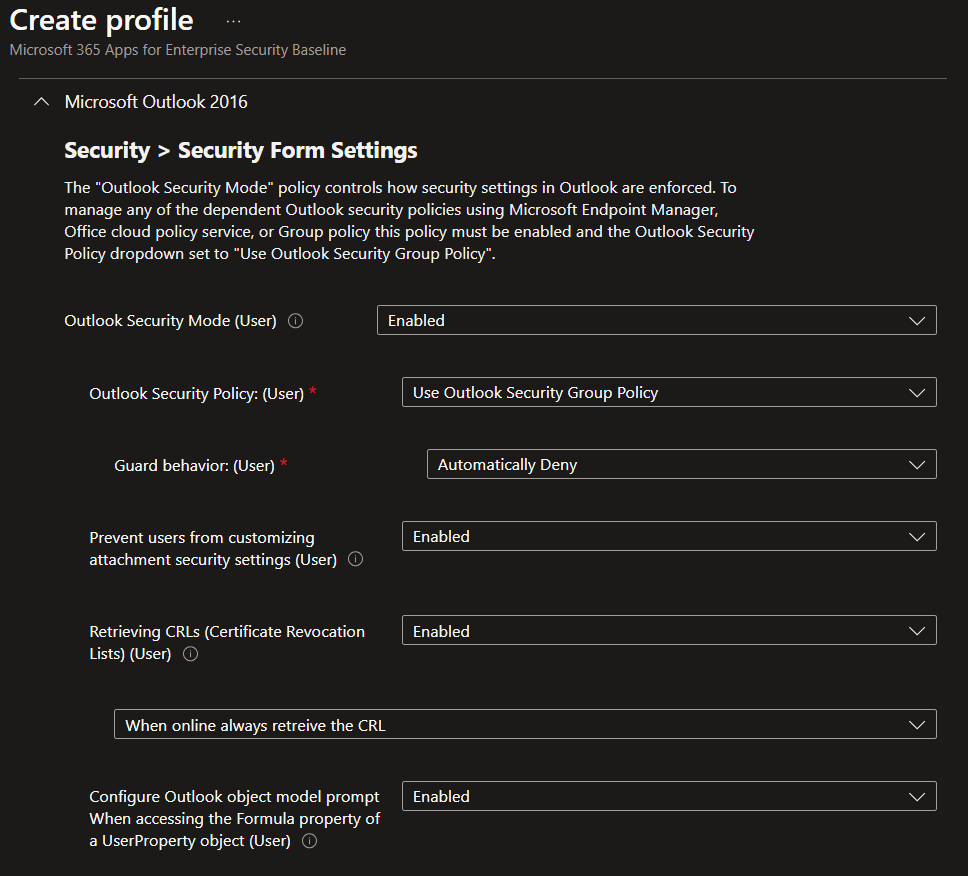
Warning! These policies have Macro settings that will disable them for the users. Not only in Microsoft Outlook, but in other apps like Microsoft Excel as well. It is recommended that you evaluate, test and understand the impacts before enabling it to all users
Attack Surface Reduction Policies
While All the ASR rules are important, I want show you a few rules that can be Exchange Online specific.
Again, Audit and make sure you know there are no issues from user’s end when setting these rules in Block mode
- Block Adobe Reader from creating child processes
- Block executable content from email client and webmail
- Block Office applications from creating executable content
- Block execution of potentially obfuscated scripts
Defender for Office 365
To bring some uniformity and control into Exchange Online, first, you need to understand the current environment and its configuration. As I mentioned earlier, you may already have non-Microsoft products that do the work. Mapping out what they do and planning to move the functionality into Defender for Office 365 should be a key element if you are planning to get the best out of your Microsoft licenses.
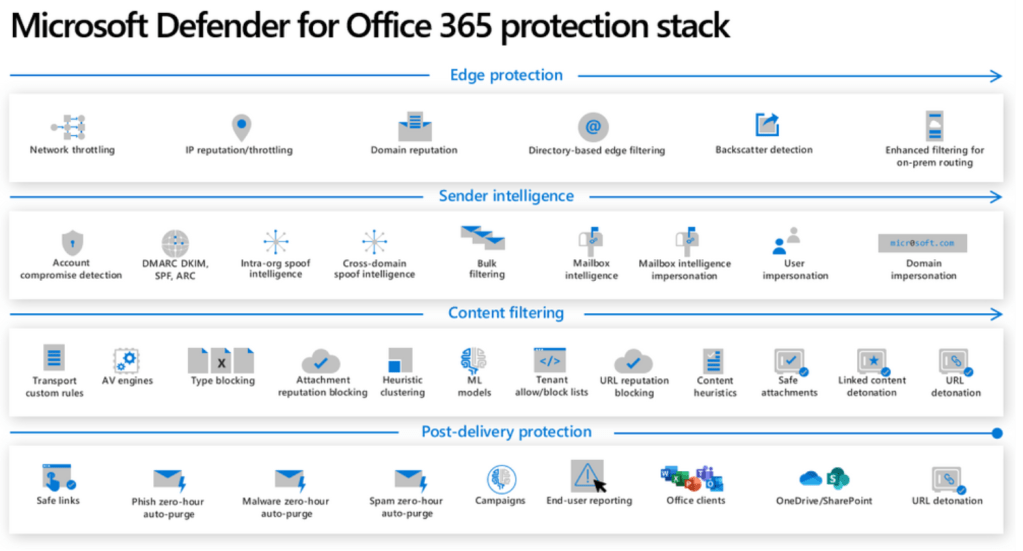
Below is a graph that what Microsoft 365 does in protecting both the backend and frontend of Exchange Online.
Defender for Office Plan 1 Vs. Plan 2
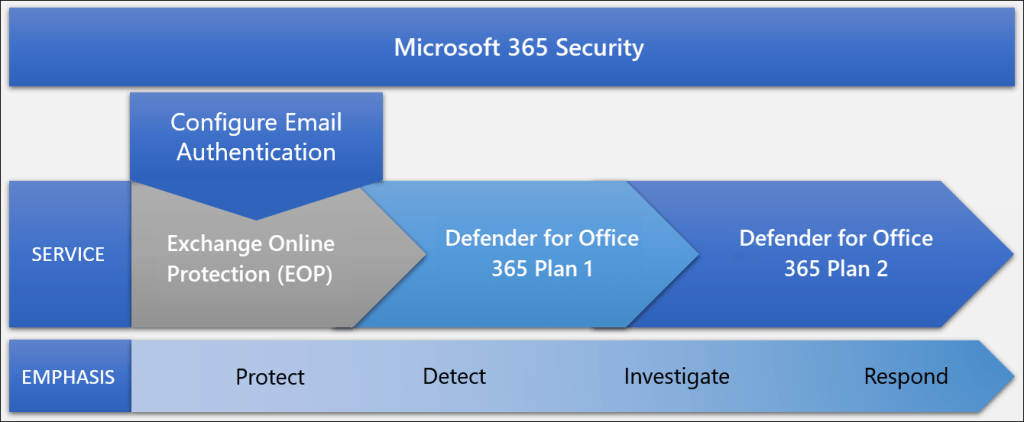
I’m not going deeper into the Plan capabilities, but I want to discuss how you can get the benefit from the full feature set.
Start with the Configuration Analyser

This can be a good starting point to understand the current config and what controls need to be setup and it gives you the option to navigate the policy from the same screen.
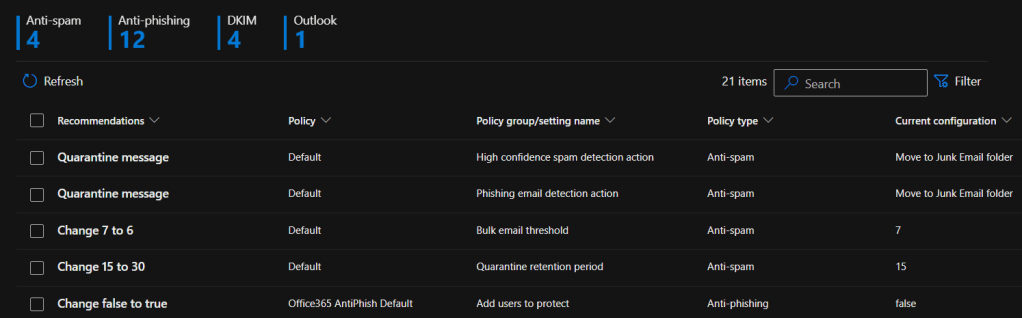
Once you have identified the gaps, it’s a matter of planning and implementing the Defender for Office 365 controls. I have added the Threat policies available in the product. They are addressing all the required Exchange Online components. I will only touch base the Threat Policies and some interesting features; however, you will see there are a lot of other options, alert setting, connecting with Sentinel and all sorts of options available in here.
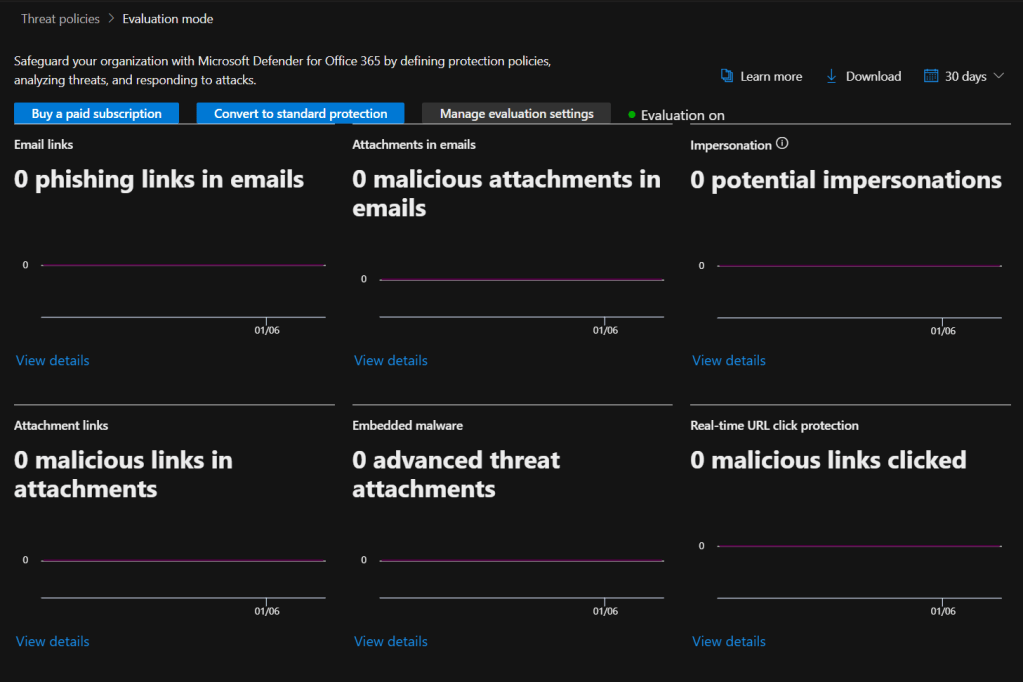
Evaluation Mode
Defender for Office 365 got the option to run in an Evaluation Mode and understand the current threat landscape in Exchange Online. With this, even if you are in a trial, you can determine your next steps of showcasing these results to the higher management or to the board as these are real data from your environment.
Defender for Office 365 Threat Policies
Mailbox Intelligence feature in Phishing Policies – Fight Against BEC
This is a great feature to tackle the BEC attacks.
Mailbox intelligence uses artificial intelligence (AI) to determine user email patterns with their frequent contacts.
For example, Gabriela Laureano (glaureano@contoso.com) is the CEO of your company, so you add her as a protected sender in the Enable users to protect settings of the policy. But, some of the recipients in the policy communicate regularly with a vendor who is also named Gabriela Laureano (glaureano@fabrikam.com). Because those recipients have a communication history with glaureano@fabrikam.com, mailbox intelligence doesn’t identify messages from glaureano@fabrikam.com as an impersonation attempt of glaureano@contoso.com for those recipients.

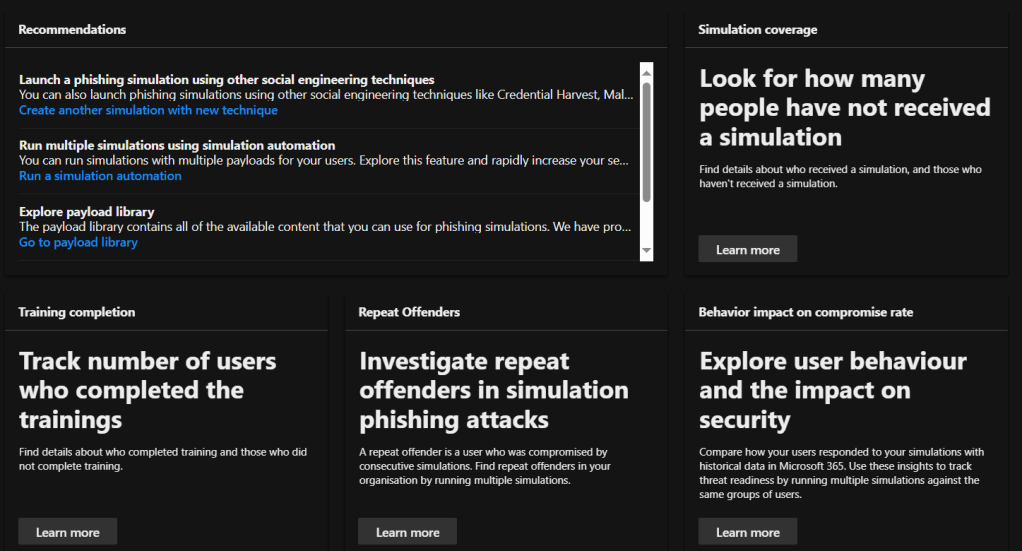
Train Your Users! – Attack simulation training
Does it really matter if you have so many controls in place, when a user clicks on a link or open an attachment? NO. The users are your frontline. That needs to be secured. However, you we all know educating users is a top priority so they will be able to distinguish between a real mail and a phishing mail.
Defender for Office 365 is coming with an Attack simulation training component where you can train your users without having to pay for another non-Microsoft product.
Defender for Cloud Apps
Audit Logging
Exchange administrator audit logging, which is enabled by default in Microsoft 365, logs an event in the Microsoft 365 audit log when an administrator (or a user who has been assigned administrative privileges) makes a change in your Exchange Online organization. Changes made using the Exchange Admin Center or by running a cmdlet in Windows PowerShell are logged in the Exchange admin audit log.
Exchange Mailbox audit logging must be turned on for each user mailbox before user activity in Exchange Online is logged – Check here on how to enable
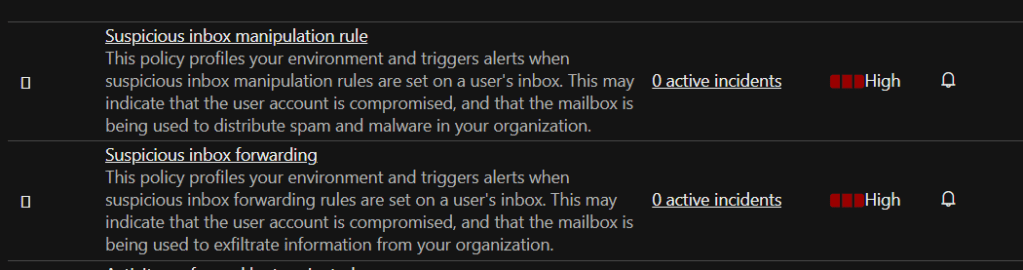
Setup Defender for Cloud Apps Policies
Defender for Cloud Apps is a great way to stop malicious activities in your apps and specifically Exchange Online environment. Check below for some policies you can immediately start using. Or better yet, create a policy manually and apply it to your environment.

Threat Hunting Alerts in Defender Advanced Threat Hunting
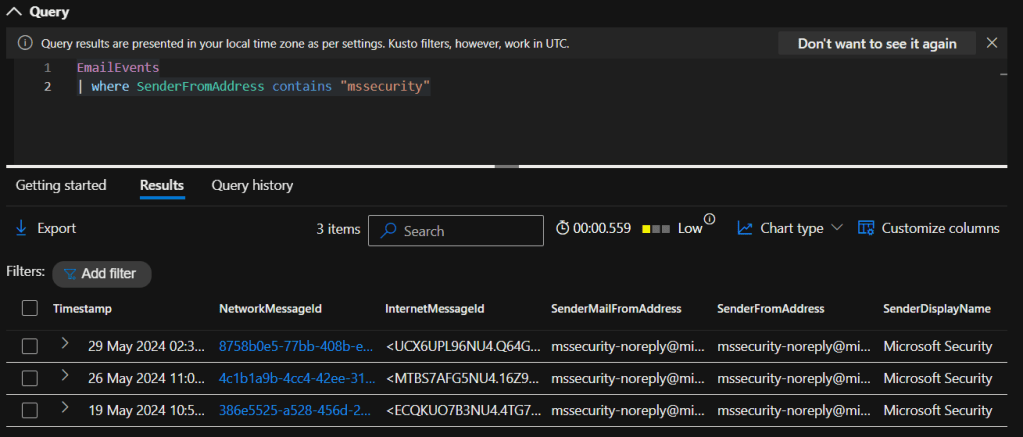
Without going into details, Advanced Threat Hunting can be done to investigate email related security issues. Check the below example and with some KQL knowledge you can store your pre-written queries to run whenever you need to hunt for threats.
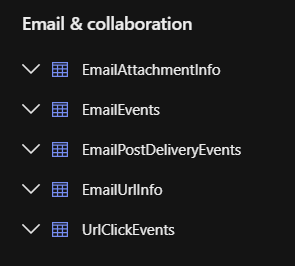
Below are the Email Related Tables available for KQL queries
Wrapping Up
As you can see this is a huge area and need a lot of attention and collaboration to be able to successfully tackle all parts. At the end of the day, Exchange Online needs to be protected at all costs and I hope this all-round solution will help you to understand what controls you can apply and how to effectively and proactively manage Exchange Online Security.
Discover more from EMS Route
Subscribe to get the latest posts sent to your email.
 EMS Route