
While Security frameworks suggest admin accounts that uses to manage privileged tasks in Entra and Azure must NOT be synchronised from the local AD, many organisations still sync them as usual accounts. Mostly because these accounts carry admin weight where recreating these accounts are nearly impossible.
This blog looks at one practical use case of the recently announced Transfer user Source of Authority (SOA) to the cloud feature and demonstrate how you can securely make the Synced High Privileged accounts to In-Cloud accounts.
At the time of writing, this feature is in Preview, however you can still test the functionality of this.
If you are an Australian organization, chances are you are in the Essential 8 Maturity journey. ISM-0445 clearly says below.
ISM control: ISM-0445
Maturity Level: 1, 2, 3
Control: Privileged users are assigned a dedicated privileged user account to be used solely for duties requiring privileged access.
Measure: Administrators should use separate accounts for privileged tasks and productivity work. Accounts with high level privileges in Microsoft Entra ID, Azure, and Microsoft 365 should be cloud-only accounts, not accounts synchronized from an on-premises Active Directory domain.
If you are still using synced accounts as high-privileged accounts, you are basically expanding your attack surface and living with a risk that haven’t been identified yet.
Prerequisites
Connect Sync client version: version 2.5.79.0
License needed: Microsoft Entra Free license
Graph Permissions: User.ReadWrite.All
Current Setup
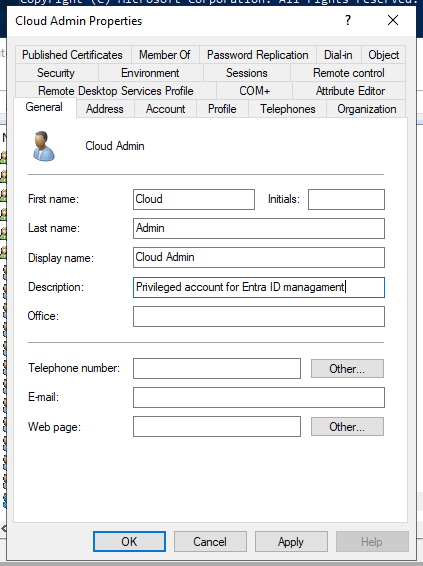

As you can see below, Cloud Admin account is also a Security Administrator in the tenant.
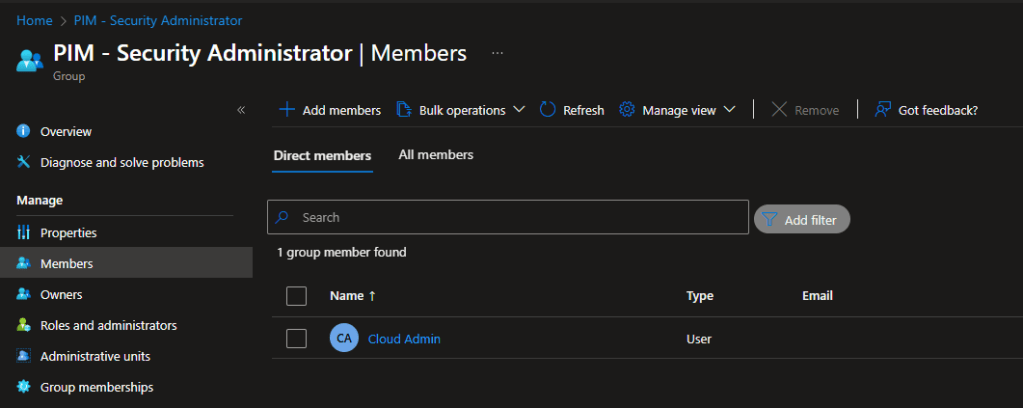
Go to Entra Connect Sync Synchronization Manager > Connectors > AD Connector > right-click and select Search Connector Space > Set the scope and look for the user
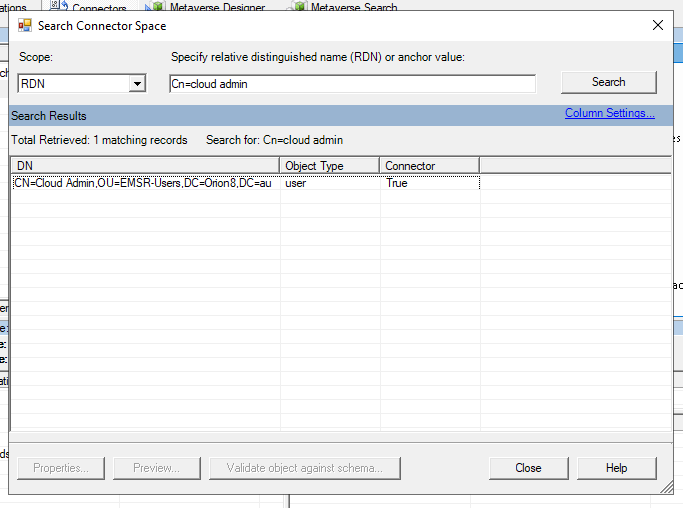
Double-click on the user account > Go to Lineage tab > Go to Metaverse Object Properties > Connectors > Double-click on the entry for the tenant connector with CN={random numbers}
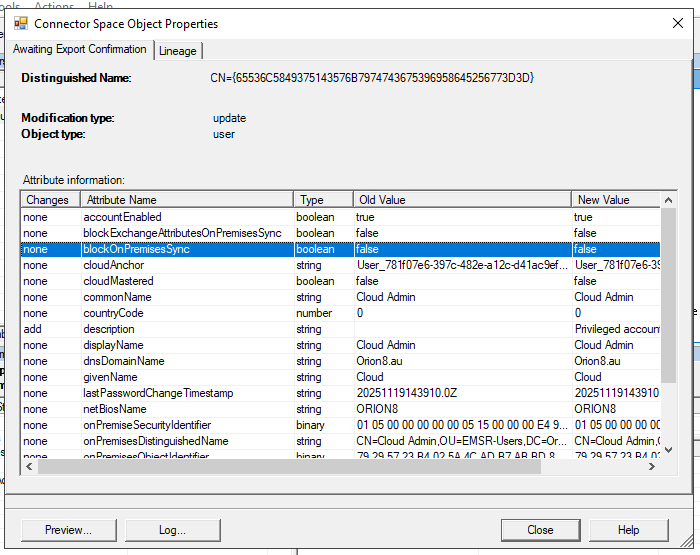
SOA Transfer Steps
- Connect to Microsoft Graph and run below API request
GET https://graph.microsoft.com/beta/users/<userID>/onPremisesSyncBehavior?$select=isCloudManaged
Replace the <userID> with the required user’s Entra ID User ID.
Reply:
As you can see, isCloudManaged is set to false

- Change the SOA
Run below API request
PATCH https://graph.microsoft.com/beta/users/<userID>/onPremisesSyncBehavior
{
"isCloudManaged": true
}
Replace the <userID> with the required user’s Entra ID User ID.
You will get the below reply.

Run the GET request again to see the changed value. As you can see, isCloudManaged attribute has changed.

- Now go back to the Entra Connect Sync server and run the delta sync.
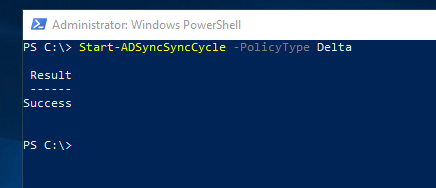
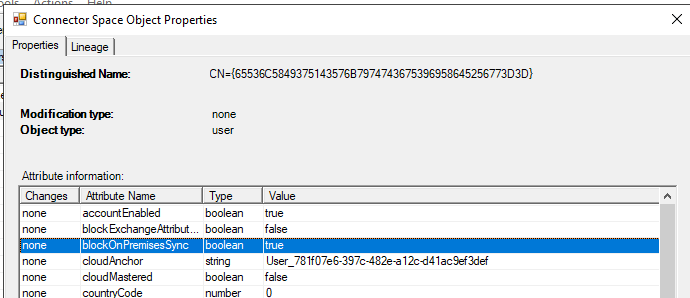
Check the user details in Entra Connect Sync’s Synchronization Service Manager.
In there, blockOnPremisesSync is set to true now. With this flag set to true, Entra Connect Sync will not sync this account any longer and SOA has successfully changed to Entra ID.
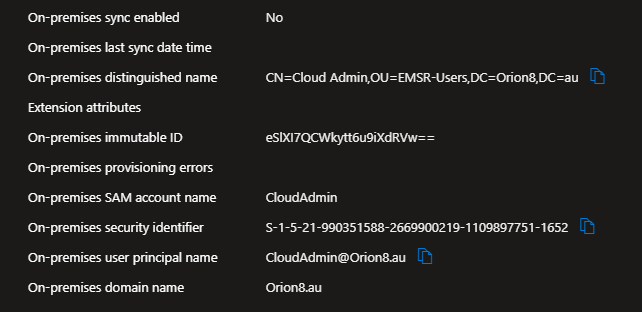
If you check the Entra account for this user now, On-premises sync enabled has been set to No with this change.
Post Transfer Steps
If you no longer wish to rollback this change, you can now clear these attributes via Graph as below.
Use the below API request and replace the <userID> and the <attribute>.
PATCH https://graph.microsoft.com/beta/users/<userID>/<attribute>
{
“value”: null
}
Attributes to be set to null
On-premises Distinguished Name = onPremisesDistinguishedName
On-premises immutable ID = onPremisesImmutableId
On-premises SAM account name = onPremisesSamAccountName
On-premises security identifier = onPremisesSecurityIdentifier
On-premises user principal name = onPremisesUserPrincipalName
On-premises domain name = onPremisesDomainName
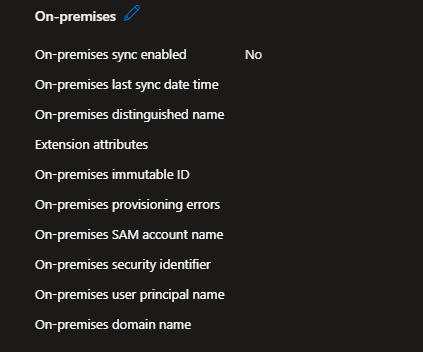
And you will get a clean account like below.
Further, if you are not planning on using the on-premises account, you can either disable them or delete them permanently.
Wrapping Up
You will see that user’s PIM elevation details are still in-tact and you will not get any errors or blocks if you make a change in the cloud account.
This will help you to rollout more stronger authentication methods like phishing resistant and password-less authentication methods and limit that attack surface.
While there are some things to consider if you are transferring standard user SOA to Entra ID, this is a faster and a cleaner way to close a big security gap in your Identity eco-system.
Discover more from EMS Route
Subscribe to get the latest posts sent to your email.
 EMS Route