Device compliance is one of the things that should be on top of the list of any organization’s Cybersecurity activities. This enforces the next steps that can be taken by the device management solution from reporting to block access to resources immediately if the configured device policies are not meeting a certain standard. For an example, take Windows OS level. If you don’t have a marker to understand the devices that doesn’t meet the minimum OS levels and the next steps of restricting access for the devices that doesn’t meet the OS levels, it can be a disaster – If someone tries to access Corporate data from a device where it’s OS is outdated there for vulnerable for attacks.
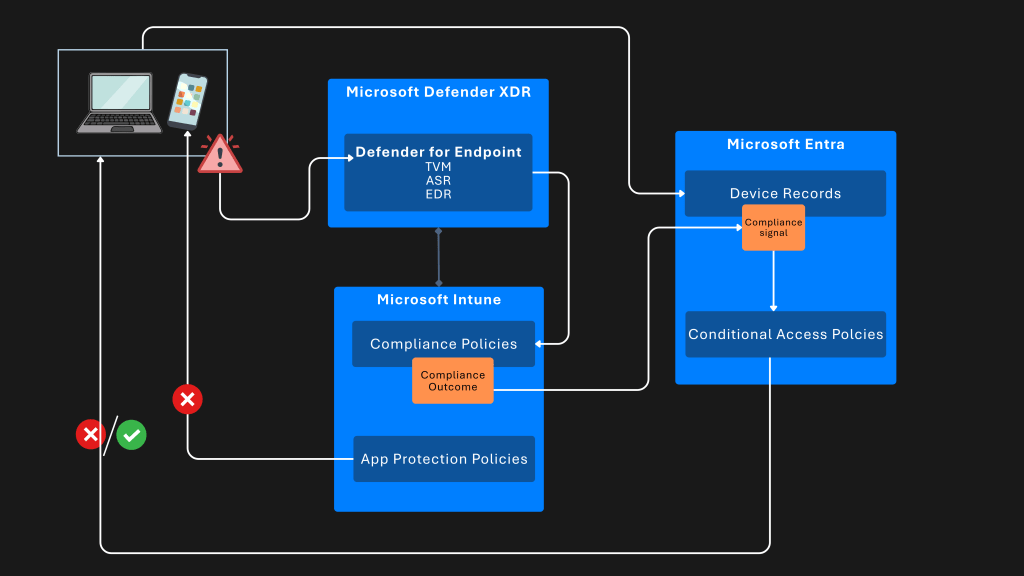
Intune Compliance policies always work hand-in-hand with other configurations and monitor the devices to see if they are falling off from the required compliance levels and reports them back to Intune and maybe action if the complementing policies have been set up.
Device Risk
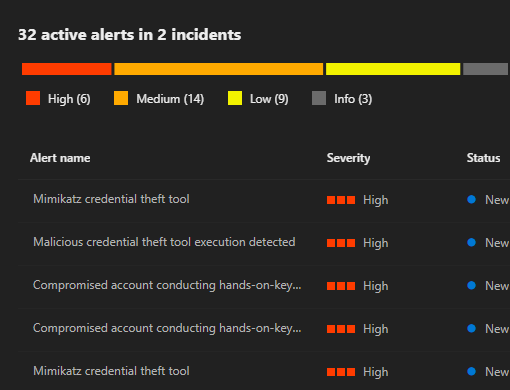
Device risk is determined by Defender for Endpoint, depending on the exposure to risks and activities found on the device. These alerts will be visible on the “Alerts” page as well. However, what’s not new is Defender for Endpoint is preventing these threats in the device and making sure the device is safe by quarantining malware or going through the Automated Investigation and Resolution tasks if configured.
Identifying risks in the device can vary from a user opening a malicious file to suspicious activities in the device identified by the Defender for Endpoint Behavioral monitoring and reporting it as an alert.
“The risk level reflects the overall risk assessment of the device based on combination of factors, including the types and severity of active alerts on the device. Resolving active alerts, approving remediation activities, and suppressing subsequent alerts can lower the risk level.”

Risk Levels
Risk Levels explained below are determined by Defender for Endpoint. It takes the vulnerabilities, risks along with the behavioural analysis done by the machine learning capabilities in Defender XDR. It is important to note that you are required to setup the security polices in Defender and apply it to your devices.
- Clear/ Secure
- Low
- Medium
- High
- Clear/ Secure: This level is the most secure. The device can’t have any existing threats and still access company resources. If any threats are found, the device is evaluated as noncompliant. (Microsoft Defender for Endpoint uses the value Secure.)
- Low: The device is compliant if only low-level threats exist. Devices with medium or high threat levels aren’t compliant.
- Medium: The device is compliant if the threats found on the device are low or medium. If high-level threats are detected, the device is determined as noncompliant.
- High: This level is the least secure and allows all threat levels. Devices with high, medium, or low threat levels are considered compliant.
Power of Microsoft Intune
This is where the goodness of Microsoft Intune comes into play. Microsoft Intune as the device management solution, has a good place for device compliance configurations and frequently checking for compliance in devices and actioning the next steps.
On the other hand this can be combined with Microsoft Entra, specifically with the Conditional Access Policies. Block access to corporate devices if the device is not compliant has been there for a while now.
I wrote about that here – https://emsroute.com/2023/02/03/byod-02/
Device Compliance Policy Rules in Defender for Endpoint
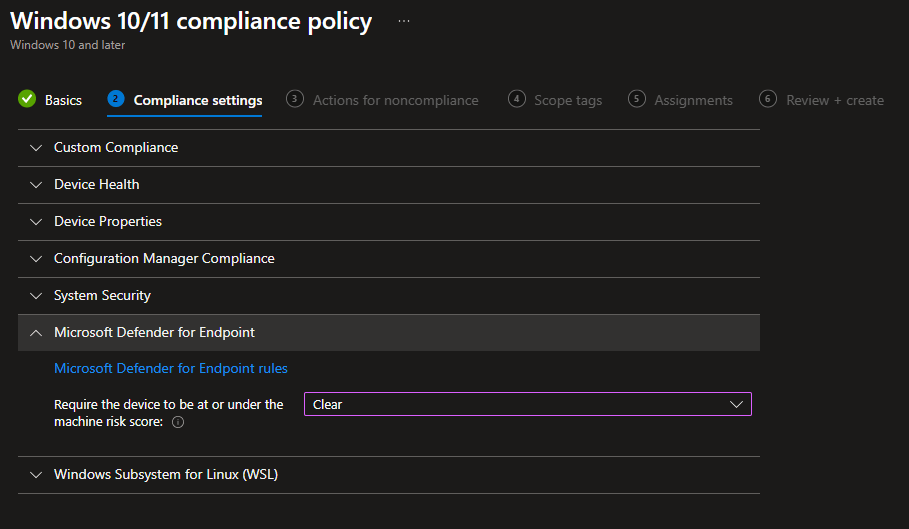
Microsoft Intune Device Compliance Policies now have rules for Defender for Endpoint Risk levels, and you can make the device to be marked as Non-Compliant immediately. Combine this with the Conditional Access Policies. Access to corporate applications and data will be immediately stopped as the device now pose a risk as threats have been found by Defender for Endpoint. Users will be able to access the resources as soon as the device risk level is secure/ clear.
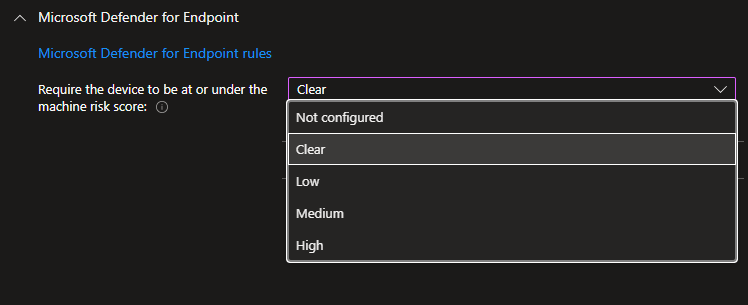
Require the device to be at or under the machine risk score in-order to enforce the controls. Devices that exceed the provided score get marked as noncompliant.
Configure Components
Prerequisites:
- Compatible with: Windows/ iOS/ Android
- Configure the service connections between Intune and Defender for Endpoint
- Device needs to be enrolled in Intune
- Device needs to be onboarded in Defender for Endpoint
Intune Device Compliance Policy
Microsoft Intune App Protection Policy
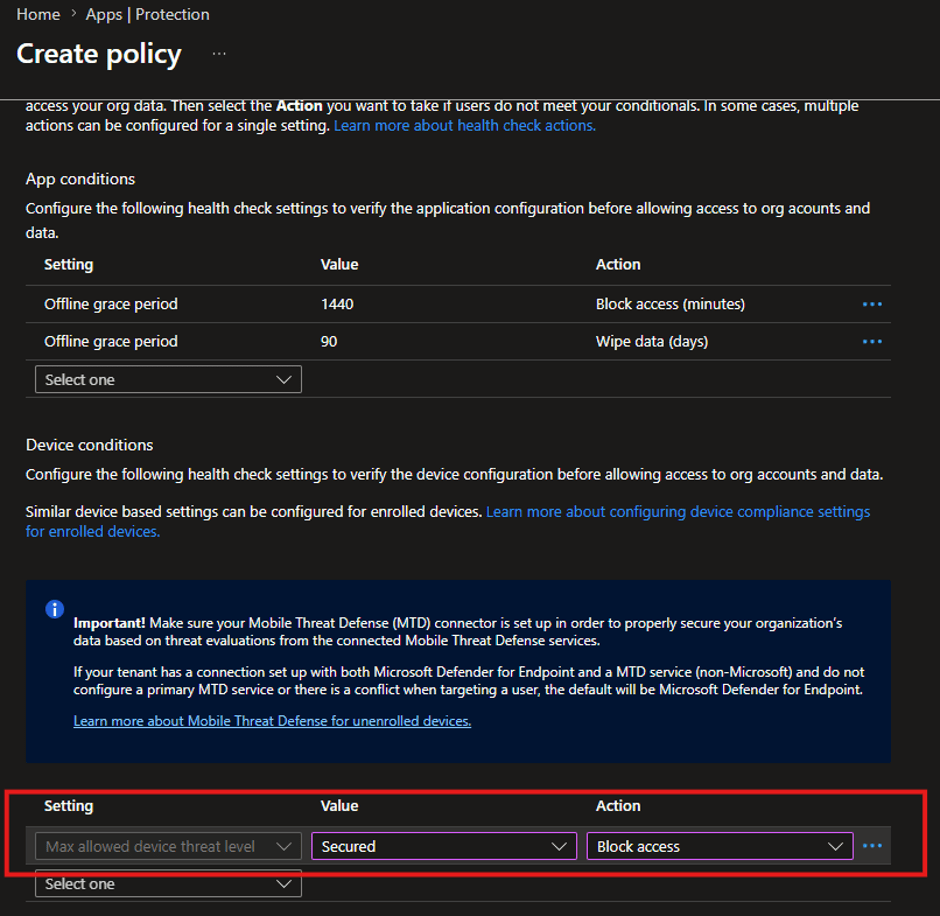
Further, Microsoft Intune App Protection Policies can be configured in order to block access to the apps in the policy scope.
OS Platforms:
Android
iOS/ iPadOS
Windows
This policy can be configured in App > Protection
How Intune Enforces the Controls?
This is determined by the Risk Score level of the device as mentioned above. You will determine the acceptable risk level for the devices and any risk level above the determined level will make the device non-compliant.
- Clear/ Secure: This level is the most secure. The device can’t have any existing threats and still access company resources. If any threats are found (high, medium or low), the device is evaluated as noncompliant. (Microsoft Defender for Endpoint uses the value Secure.)
- Low: The device is compliant if only low-level threats exist. Devices with medium or high threat levels aren’t compliant.
- Medium: The device is compliant if the threats found on the device are low or medium. If high-level threats are detected, the device is determined as noncompliant.
- High: This level is the least secure and allows all threat levels. Devices with high, medium, or low threat levels are considered compliant. Recommended for report-only scenarios.
These risk level identifiers can be used in Microsoft Intune Compliance policies and App Protection Policies which I will be explaining below.
Configure the Conditional Access Policy
Create the CA Policy in-order to block access to corporate resources depending on the device compliance.
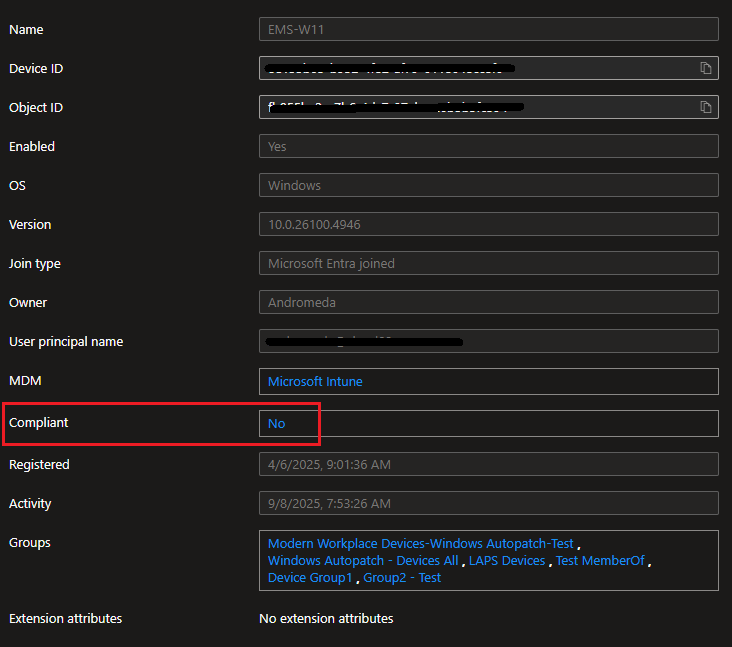
At a glance, Entra ID devices page will show you the compliance signal.
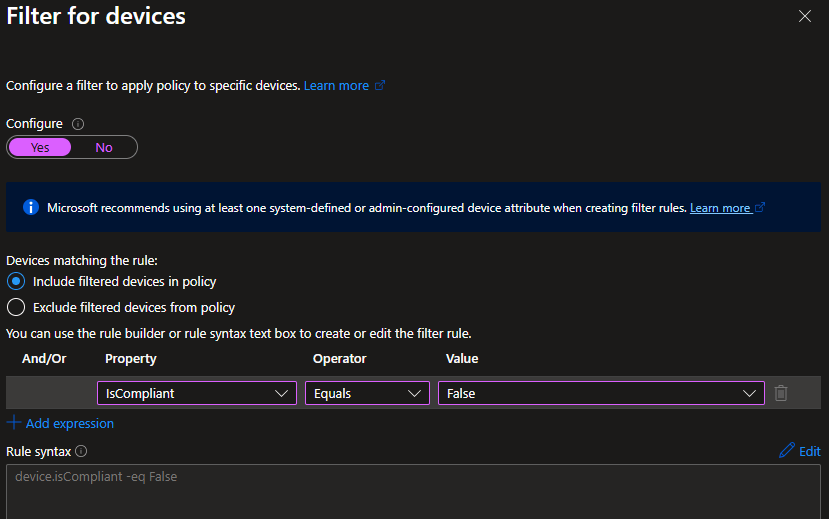
Use Device Filters in Conditions
When creating the Conditional Access policy, you can use the above compliance signal to make sure you are addressing the correct set of devices by setting a Device Filter in your policy.,
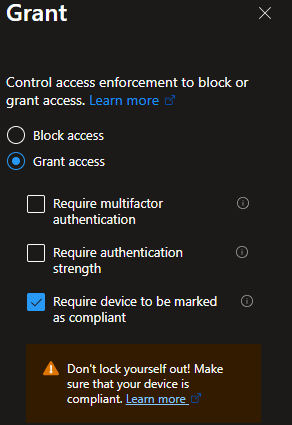
Set the Grant Action
This will make sure the access to the resources are blocked until the device to be marked as compliant. Which means the Device Risk needs to be clear or have to be at the given state.
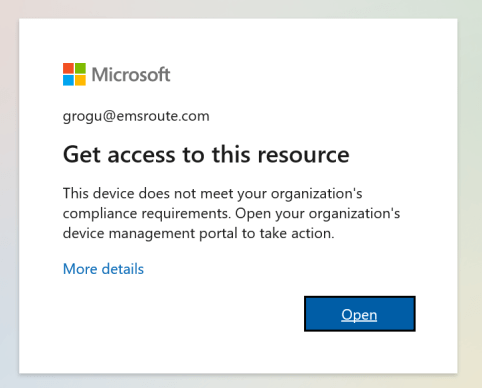
End-User Experience with the Conditional Access Policy Enforcement
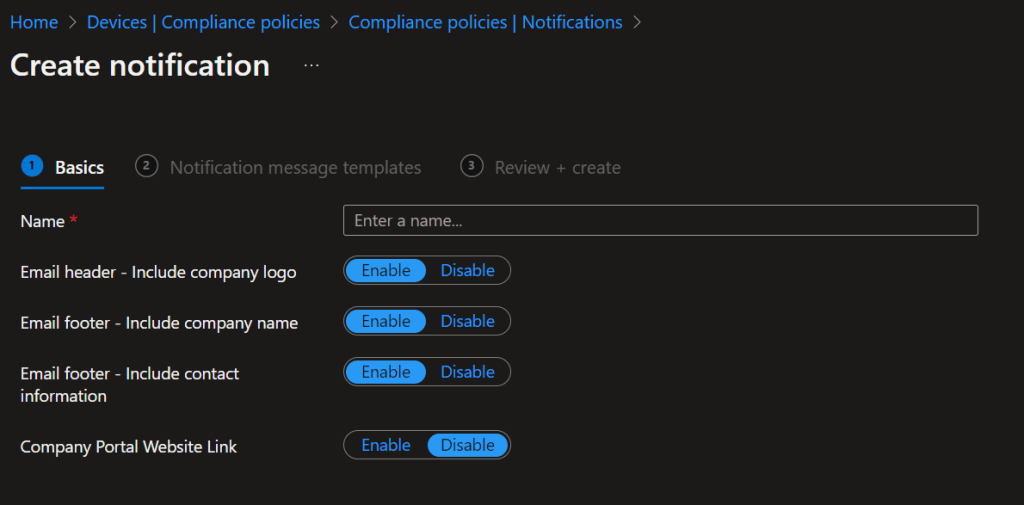
IT Admins to Get Notified
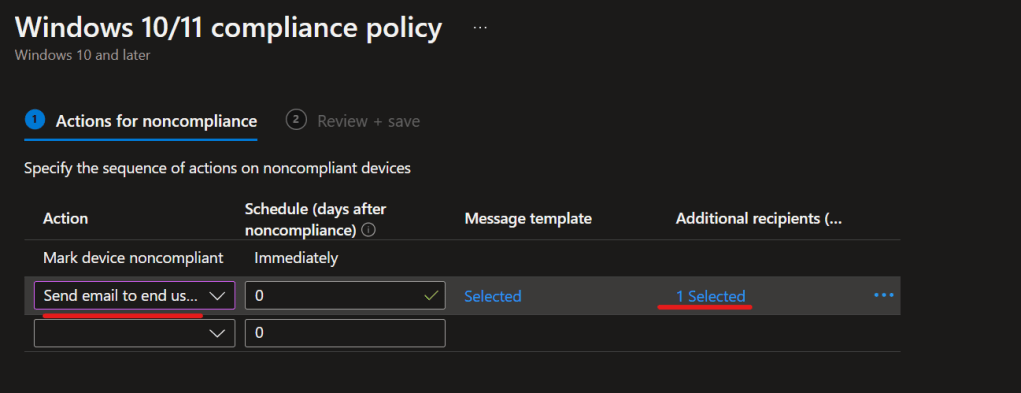
Create Notifications in Intune Compliance Policies and you can get notified when the devices are not compliant
Set the option Send email to end user and select an additional user as well. This can be your IT admin or helpdesk email address.
Remediation
There are a few ways to clear the status, so the user will be able to access the resources as well as the device will be compliant.
- Use Manual or automated remediation of the risks and vulnerabilities identified in the device.
- Resolve active alerts on the device. This removes the risk from the device.
- You can remove the device from the active policies and consequently, Conditional Access won’t be applied on the device – This will not remove the threats presented in the device. You need to make sure the threats are removed successfully to reduce the overall risk.
Wrapping Up
Device Compliance is paramount, and this combination will prove you how components in the eco-system works hand in hand in-order to remove threats and reduce risks in your environment.
Discover more from EMS Route
Subscribe to get the latest posts sent to your email.
 EMS Route