
Long topic and number of jargon. Cloud Kerberos Trust, Windows Hello for Business (WHfB), Entra ID Joined. Let’s break them down one by one and see how Cloud Kerberos Trust will help you in the cloud journey.
This in fact will remove one more on-prem dependency. Exciting, isn’t it? Let’s dig in.
What this article will cover?
- The Problem
- Why This Is Not Working as Intended?
- Now let’s look at the process
- Story Before Cloud Kerberos Trust?
- Configure Cloud Kerberos Trust
- Configure Windows Hello for Business
- Result
- What Happens Behind the Scenes?
- Migrate (optional)
- Unsupported Scenarios
- Recommended – Rotating the Entra Cloud Kerberos Server Key
- Wrapping Up
The Problem
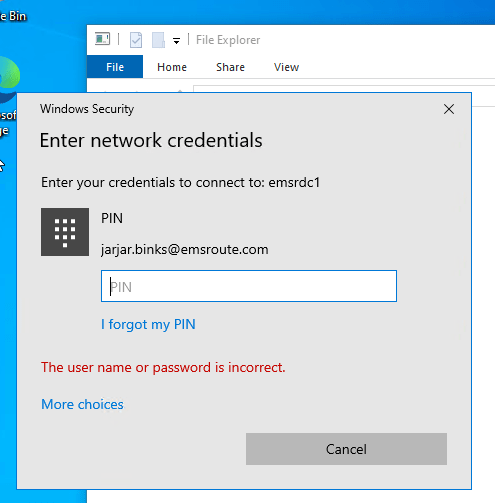
You have your users synced from the on-prem AD to Entra ID, and users have usual access to RDP, network resources, etc,. Users are authenticating to those using their domain username and password. You are now planning on moving the devices from Hybrid or On-prem AD joined to fully Entra ID joined and they are no longer connected to the On-prem AD. The devices are still in the corporate network and users are still prompted to enter credentials to authenticate. The Entra ID joined device is now configured in Windows Hello for Business.
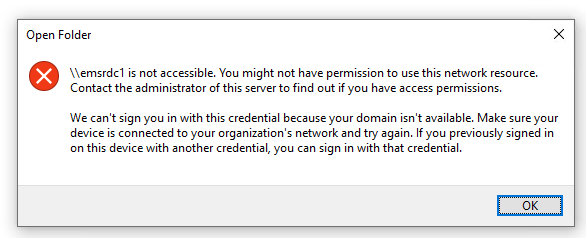
You notice that if the user signs in to the device using the username (Entra ID UPN) and the password, then they’ll be able to access the resources. However, if they log in to the device using WHfB, they are unable to authenticate. This can be a potential issue if you want to implement passwordless methods and at the same time provide the same access to the on-prem resources.
Why This Is Not Working as Intended?
In simple terms, to authenticate to a domain-joined resource such as a file share, the user should provide their Windows username and password which then goes through the Kerberos authentication process to provide the necessary access.
The device is not joined to the local AD and therefore not accepting the credentials even though the device is in the same corporate network.
Windows Hello for Business is not Kerberos aware. It uses the Biometric or PIN Authentication which are passwordless means to authenticate.
Windows Hello for Business uses a two-factor authentication method that combines a device-specific credential with a biometric or PIN gesture. This credential is tied to your identity provider, such as Microsoft Entra ID or Active Directory, and can be used to access organization apps, websites, and services.
More on WHfB technology: https://learn.microsoft.com/en-us/windows/security/identity-protection/hello-for-business/how-it-works
In a nutshell, when using WHfB the password is not used to authenticate as it does when the user enters the username and the password to login to the computer or when accessing a file share. Because of this reason, it fails when accessing the resource.
Now let’s look at the process
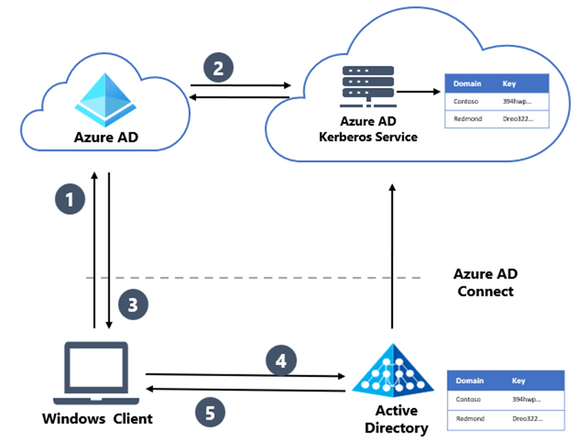
- The users sign in to Windows with Windows Hello for Business by authenticating with Entra ID.
- Entra ID checks for a Kerberos server key matching user’s on-premises AD domain and generates a partial Kerberos ticket granting ticket (TGT) for on-premises domain. The partial TGT contains the user security identifier (SID) only and no authorization data, such as groups.
- The partial TGT is returned to the client along with Entra ID Primary Refresh Token (PRT).
- Client contacts on-premises AD domain controller and exchanges the partial TGT for a full TGT. This is the same protocol flow used today for Read Only Domain Controller scenarios.
- Client has the Entra ID PRT and a full Active Directory TGT.
Story Before Cloud Kerberos Trust?
It is important to understand the technology that was before Cloud Kerberos Trust. Both Hybrid Key Trust and Hybrid Certificate Trust deployments are not that easy to configure and need to have the correct certificate configured for the endpoint to communicate with the right domain controller. I don’t want to go in-depth on that as the Cloud Kerberos Trust is much easier to implement and the migration from either Hybrid Key Trust or Hybrid Certificate Trust is an easy process as well.
Configure Cloud Kerberos Trust
Install the PowerShell module AzureADHybridAuthenticationManagement
Install-Module -Name AzureADHybridAuthenticationManagement -AllowClobber
Run the below command and will create a Kerberos Server Object in the On-premises AD environment. This needs to be run on all Domain Controllers in the environment.
# Enter a UPN of a Global Administrator
$domain = $env:USERDNSDOMAIN
# Enter a UPN of a Global Administrator
$userPrincipalName = "administrator@contoso.onmicrosoft.com"
#Enter a Domain Administrator username and password.
$domainCred = Get-Credential
(An Active Directory user who is a member of the Domain Admins group)
# Create the new Entra ID Kerberos Server object in Active Directory # and then publish it to Azure Active Directory. # Open an interactive sign-in prompt with given username to access the Entra ID.
Set-AzureADKerberosServer -Domain $domain -UserPrincipalName $userPrincipalName
# When prompted to provide domain credentials use the userprincipalname format for the username instead of domain\username
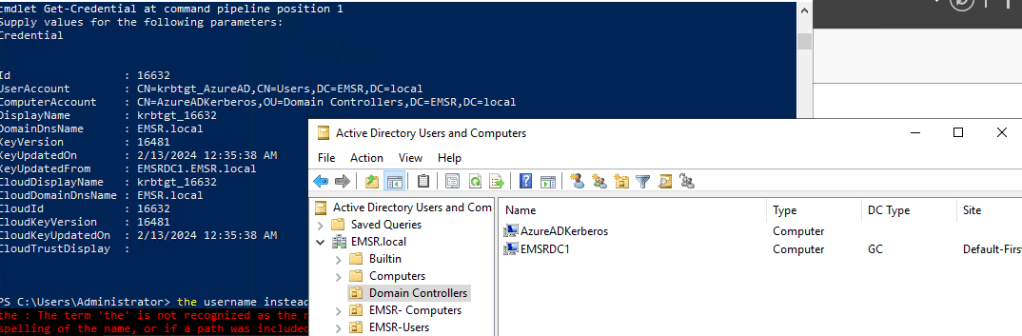
Get-AzureADKerberosServer -Domain $domain -UserPrincipalName $userPrincipalName -DomainCredential (get-credential)
This will create the server object and appears as a Read Only Domain Controller (RODC) object, but isn’t associated with any physical servers and is only used by Microsoft Entra ID to generate TGTs for the Active Directory domain.


Configure Windows Hello for Business
This is the second part of the implementation as this will set WHfB in the endpoint. You can easily use Microsoft Intune to create a config policy and target it to the devices.
Configure WHfB
Option 1 – Enable WHfB with the tenant-wide setting
Intune Portal > Devices > Enrollment > Windows Hello for Business
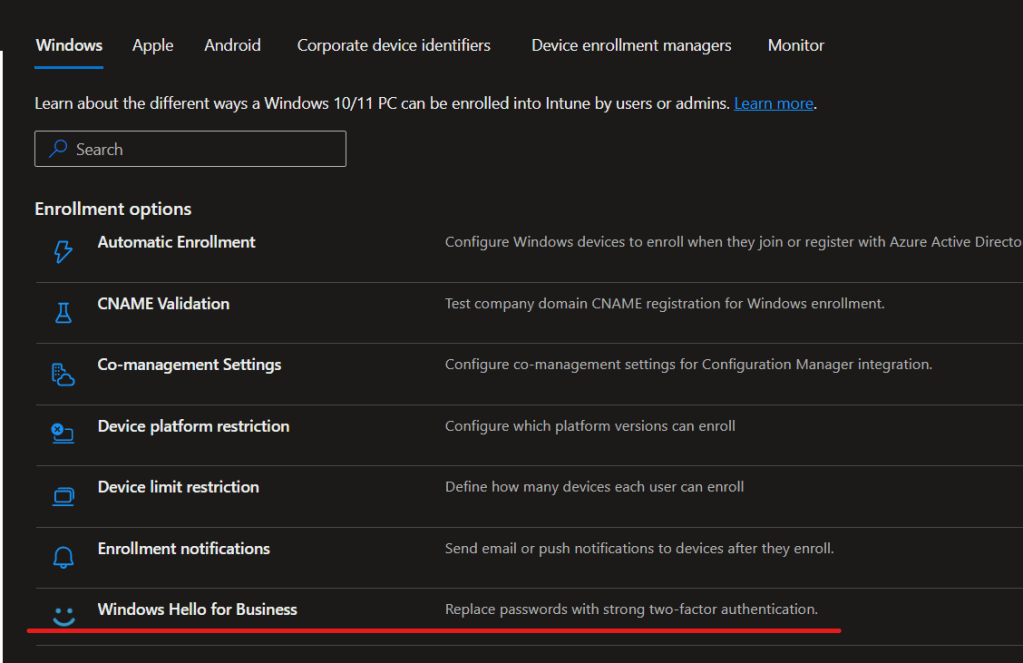
Set the policy as below

Option 2: Use Settings Catalog
Create and enable this only to the target user or device group that you need to set the policy on to.
| Category | Setting name | Value |
|---|---|---|
| Windows Hello for Business | Use Passport For Work | true |
| Windows Hello for Business | Use Cloud Trust For On Prem Auth | Enabled |
| Windows Hello for Business | Require Security Device | true |
Configure Cloud Trust For On Prem Auth
If you enable this policy setting, Windows Hello for Business uses a Kerberos ticket retrieved from authenticating to Microsoft Entra ID for on-premises authentication.
Create a policy using Settings Catalog and target the device group that needs to have the Cloud Kerberos Authentication.

Now if you check the User Device Registration admin log under Applications and Services Logs > Microsoft > Windows in Event Viewer,
The cloud Kerberos trust prerequisite check detects whether the user has a partial TGT before allowing provisioning to start. The purpose of this check is to validate whether Microsoft Entra Kerberos is set up for the user’s domain and tenant. If Microsoft Entra Kerberos is set up, the user receives a partial TGT during sign-in with one of their other unlock methods. This check has three states: Yes, No, and Not Tested. The Not Tested state is reported if cloud Kerberos trust isn’t enforced by policy or if the device is Microsoft Entra joined.
The cloud Kerberos trust prerequisite check isn’t done on Microsoft Entra joined devices. If Microsoft Entra Kerberos isn’t provisioned, a user on a Microsoft Entra joined device will still be able to sign in, but won’t have SSO to on-premises resources secured by Active Directory.
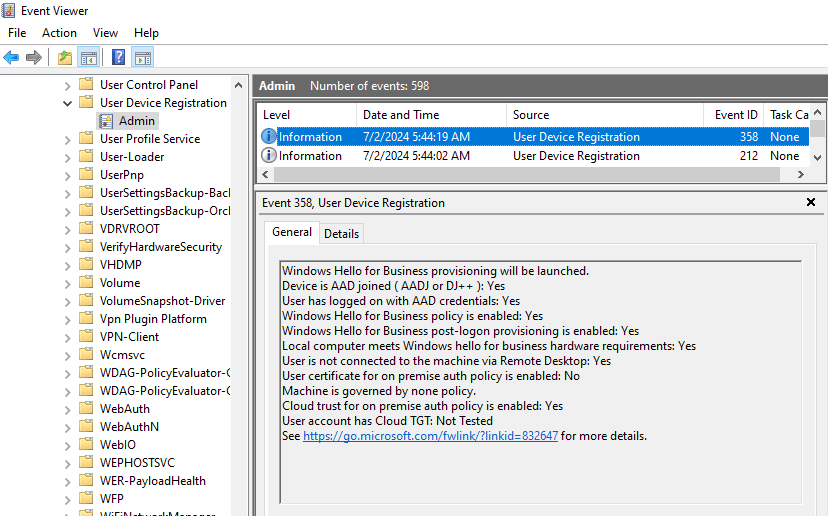
Result
Once everything is set up, my user is now trying to access the file share by login to the computer using the PIN instead of the Windows password and he is now able to access the file share.
What Happens Behind the Scenes?
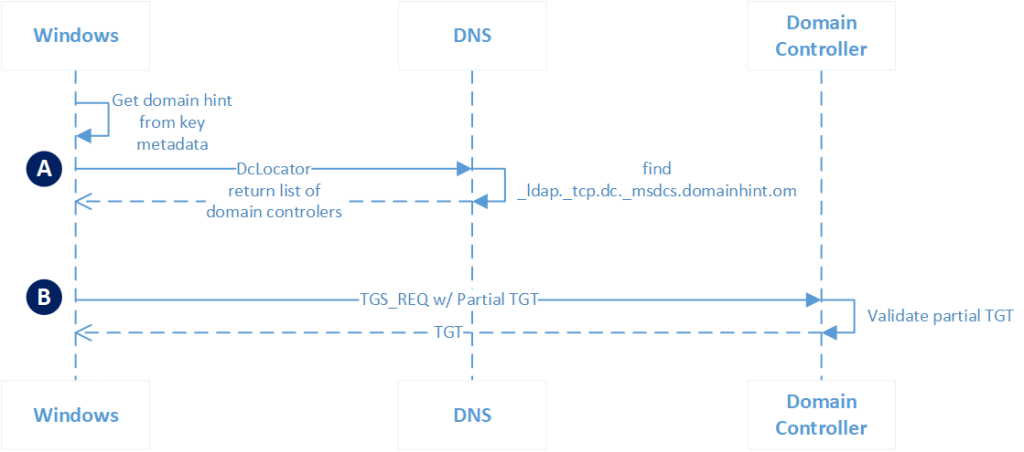
| Phase | Description |
|---|---|
| A | Authentication to Active Directory from a Microsoft Entra joined device begins with the user first attempts to use a resource that needs Kerberos authentication. The Kerberos security support provider, hosted in lsass, uses metadata from the Windows Hello for Business key to get a hint of the user’s domain. Using the hint, the provider uses the DClocator service to locate a domain controller. |
| B | After locating a domain controller, the Kerberos provider sends a partial TGT that it received from Microsoft Entra ID from a previous Microsoft Entra authentication to the domain controller. The partial TGT contains only the user SID, and it’s signed by Microsoft Entra Kerberos. The domain controller verifies that the partial TGT is valid. On success, the KDC returns a TGT to the client. |
Migrate (optional)
Migration is an optional task if you have setup Hybrid Key Trust and Hybrid Certificate Trust previously.
Moving from Hybrid Key Trust Deployment Model
If you are moving from Hybrid Key Trust, once the Cloud Kerberos Trust setup is done, simply log off and login to the device and it will start working with the Cloud Kerberos Trust method.
Cloud Kerberos trust is incompatible with certificate trust. If the certificate trust policy setting is enabled, it takes precedence over this policy setting.
Moving from Certificate Key Trust
- Disable the certificate trust policy
- Enable cloud Kerberos trust via Group Policy or Intune
- Remove the certificate trust credential using the command
certutil.exe -deletehellocontainerfrom the user context - Sign out and sign back in
- Provision Windows Hello for Business using a method of your choice
Unsupported Scenarios
- RDP/VDI scenarios using supplied credentials (RDP/VDI can be used with Remote Credential Guard or if a certificate is enrolled into the Windows Hello for Business container)
- Using cloud Kerberos trust for Run as
- Signing in with cloud Kerberos trust on a Microsoft Entra hybrid joined device without previously signing in with DC connectivity
Recommended – Rotating the Entra Cloud Kerberos Server Key
The Microsoft Entra Kerberos server encryption krbtgt keys should be rotated on a regular basis. Iyt is a good practice that you follow the same schedule you use to rotate all other Active Directory DC krbtgt keys.
Set-AzureADKerberosServer -Domain $domain -CloudCredential $cloudCred -DomainCredential $domainCred -RotateServerKey
Wrapping Up
This guide provides the basic understanding of the technology and how you can use it to avoid another roadblock along the way. In my experience I have seen how authentication can be an issue when planning on moving the devices to Entra ID joined state. Of course, there can be files shares where users still need to access which are at on-prem and tied to the AD environment and that needs to happen until such time those resources are moved to a cloud repository. I hope Cloud Kerberos Trust will help you to achieve that easily and securely and add value to your cloud investment.
Discover more from EMS Route
Subscribe to get the latest posts sent to your email.
 EMS Route
Hi Shehan,
Is this approach works for Hybrid domain joined devices?
https://learn.microsoft.com/en-us/windows/security/identity-protection/hello-for-business/deploy/hybrid-cloud-kerberos-trust?tabs=intune
LikeLike
I tried this, but those not work. Everything is done as told, the eventvwr part also the same, but when connecting to the share, it still cant connect using the pin,
LikeLike
Sorry for the long delay. I did this with a customer as well as in my test setup. Worked as expected in both cases. Make sure you have enabled the FW appropriately as well.
LikeLike
Hi, hoping you can point me in the right direction, this seems to work fine for an Entra Joined device in regards to accessing a domain share. However when accessing a webserver frontend that uses Kerberos authentication, The Entra Joined device just prompts for authentication. Webserver is internal SharePoint on prem. Have tested with another ldap auth webserver too, same issue. Is there a fix, is this a WHFB constraint?
LikeLike
Hi, the documentation hasn’t mentioned anything on the Webserver access. I would say it can be a limitation at this stage.
Have you tried Entra Global Secure Access – Private Apps? I’m guessing it might be the answer for your scenario as Entra Joined device is trying to access On-prem webserver.
LikeLike