
This is a comprehensive guide to Intune Remote Help. Hope you find this useful.
- Update 2026 : What’s new?
- Remote Help Benefits
- Remote Help License Requirements
- Network Considerations – Updated Endpoints list
- Configure Remote Help App in Intune
- Remote Help Win32 App Deployment
- Firewall Rules Considerations
- RBAC – Assign Users to role
- Create a new RBAC Permission Role
- Create The Conditional Access Policy for the Remote Help App
- How to Use
- Initiating Chat in the App
- Restarting the Device Remotely
- When a Non-Compliant Device in the Mix
- Monitoring Remote Help Sessions
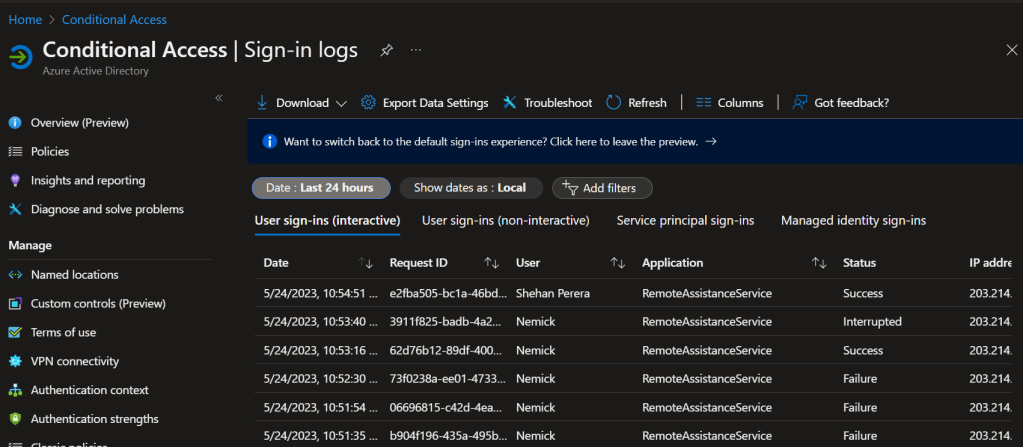
- Monitor Conditional Access Sign-in Logs
- Wrapping Up
Update 2026 : What’s new?
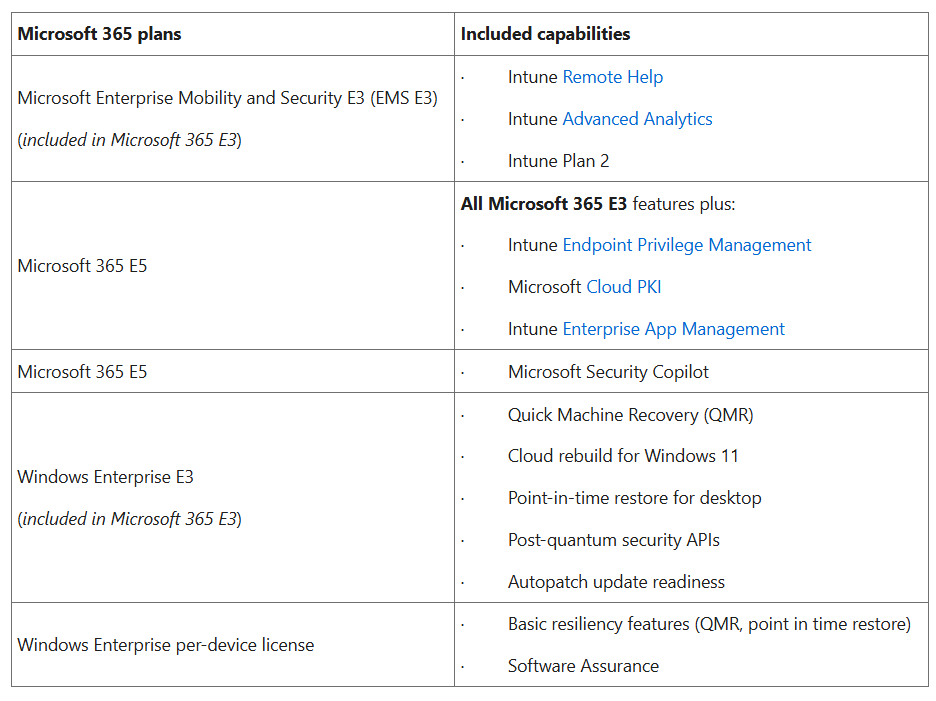
Starting July 2026 Intune Remote Help will be a part of the upcoming M365 E3 and E5 as Microsoft will be adding the Intune Suite features to those licenses.
Remote Help Benefits
- You don’t need to rely on other 3rd party remote support tools which sometimes can be dangerous to use as they can bring unwanted issues to your environment
- This is controlled via Intune and can be used to manage both enrolled and unenrolled devices
- Because RBAC can be done over providing help, if you have a set of computers that 1st level admins should not login, you can set up a new RBAC role and assign the permissions as required
- Microsoft Intune can provide admins with support session logs/ reports
Remote Help License Requirements
Update: As mentioned above, this will be available as a M365 E3 and E5 feature. You can simply go to the user licence and turn it on. Below Option 1 and Option 2 are the current way of enabling it.
Option 1 – Microsoft Intune Suite
Purchasing a Microsoft Intune Suite subscription and assign to the users

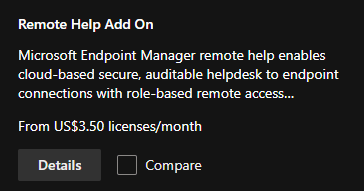
Option 2 – Remote help add-on
This is a per-user add-on and check here for more info
This is what you will see when you go to the Intune portal > Tenant Administration > Premium Add-ons > click on view details on Remote help

Remote Help Add-on details on in the Admin Center Billing Page
Remote Help terminology
Helper – The IT admin who is supporting the user
Sharer – User who requires help
Network Considerations – Updated Endpoints list
Remote Help works over port 443 and connects to https://remoteassistance.support.services.microsoft.com by using RDP and the traffic is encrypted via TLS 1.2
Both Helper and Sharer should be able to reach the below endpoints via port 443
MEM – Remote Help Feature (below on port 443)
*.support.services.microsoft.comremoteassistance.support.services.microsoft.comteams.microsoft.comremoteassistanceprodacs.communication.azure.comedge.skype.comaadcdn.msftauth.netaadcdn.msauth.netalcdn.msauth.netwcpstatic.microsoft.com*.aria.microsoft.combrowser.pipe.aria.microsoft.com*.events.data.microsoft.comv10c.events.data.microsoft.com*.monitor.azure.comjs.monitor.azure.comedge.microsoft.com*.trouter.communication.microsoft.com*.trouter.teams.microsoft.com*.trouter.communications.svc.cloud.microsoft(starting around March 15th, 2026)go-amer.trouter.communications.svc.cloud.microsoft(starting around March 15th, 2026, only for NA, ROW customers)go-apac.trouter.communications.svc.cloud.microsoft(starting around March 15th, 2026, only for APAC customers)go-eu.trouter.communications.svc.cloud.microsoft(starting around March 15th, 2026, only for EU customers)api.flightproxy.skype.comecs.communication.microsoft.comremotehelp.microsoft.comremoteassistanceprodacseu.communication.azure.com(this endpoint is only for EU customers)
Dependency – Remote Help web pubsub (below on port 443)
*.webpubsub.azure.comAMSUA0101-RemoteAssistService-pubsub.webpubsub.azure.com
Remote Help Dependency for GCC customers (below on port 443)
remoteassistanceweb-gcc.usgov.communication.azure.usgcc.remotehelp.microsoft.comgcc.relay.remotehelp.microsoft.com*.gov.teams.microsoft.us
Configure Remote Help App in Intune
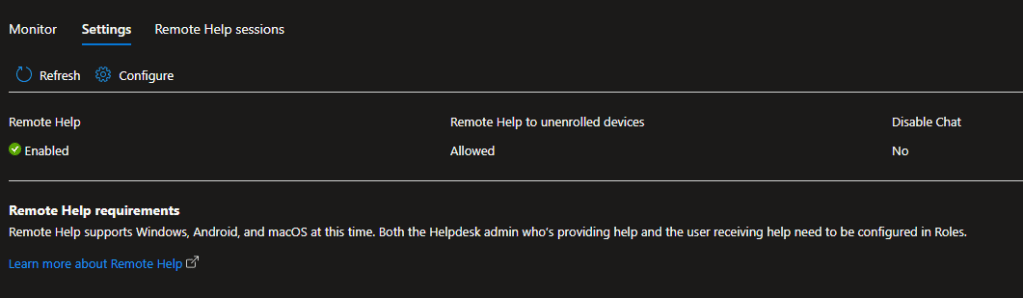
This feature is disabled by default and the Intune Administrator needs to go in and change the settings
Go to https://intune.microsoft.com > Tenant Administration > Remote Help

Enable the below options and hit Save

Set the Enable remote help to Enabled
And Allow remote help to unenrolled devices to Enabled
Unenrolled devices will not be able to get grab the Remote Help app pushed by Intune. For these devices, the app needs to be installed manually.
Remote Help Win32 App Deployment
- Download the Remote Help app 🔗Check here
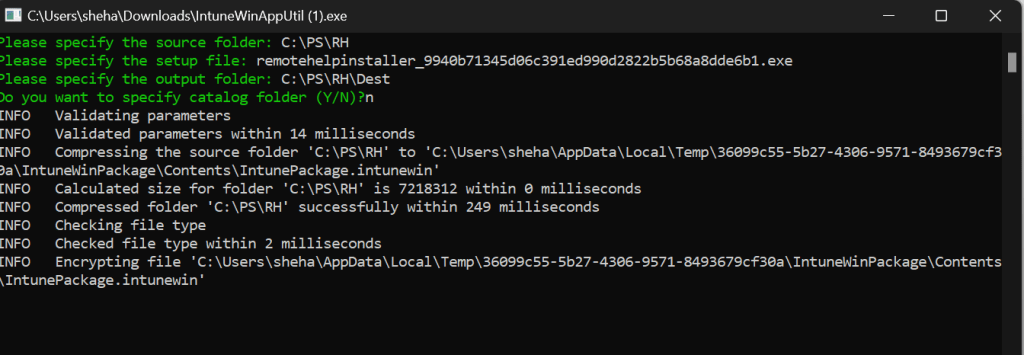
- Use the intunewin app util to prepare the remote help app 🔗Check here
- Run IntuneWinAppUtil.exe as Administrator


- Upload the app to Intune
- Go to Apps > Windows in the Intune portal
- Add > App type: Windows app (Win32) > Select
- Select the intunewin package created previously and upload it
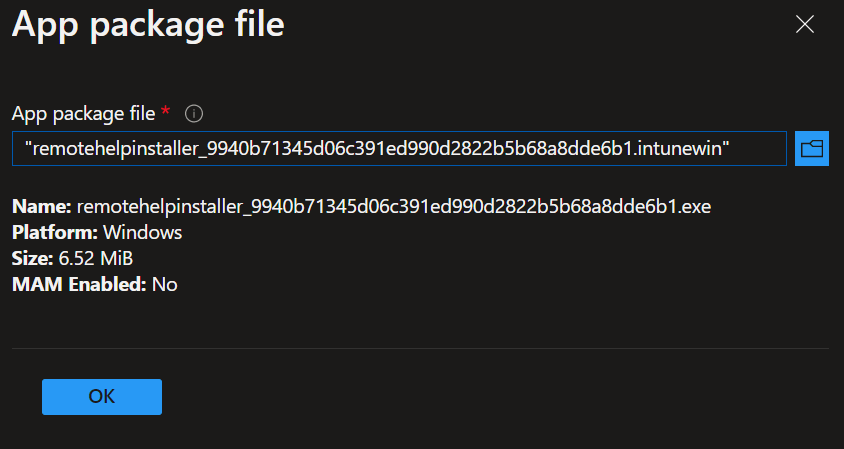
- Set the Name/ Description/ Publisher
- Set the Install command remotehelpinstaller.exe /quiet acceptTerms=1
- Set the Uninstall command remotehelpinstaller.exe /uninstall /quiet acceptTerms=1
- Install behavior System

- Press Next
- Under Requirements, OS architecture – Select x86, x64 or both
- Minimum OS – Select the OS level
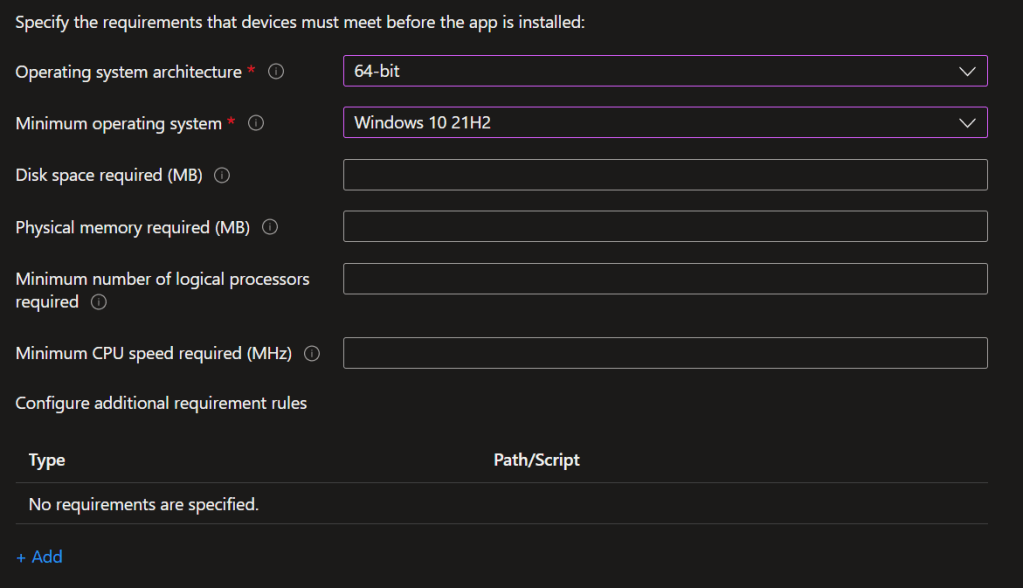
- Press Next
- Under Detection rules, Rule format – Manually configure detection rules
- Detection rules – Select File and key in C:\Program Files\Remote help
- File or folder – RemoteHelp.exe
- Detection method – File or folder exists

- Press OK > Press Next and skip Dependencies and Supersedence
- Under Assignments, Assign it to the required Device Group
- Review and Create
This will now get installed in the specified device group.
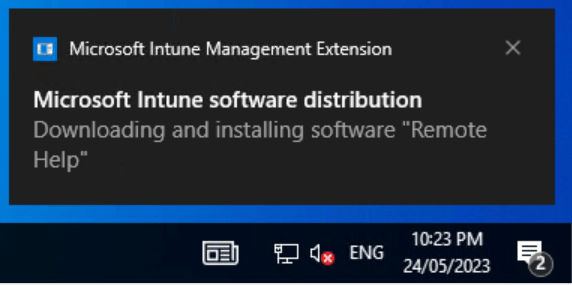
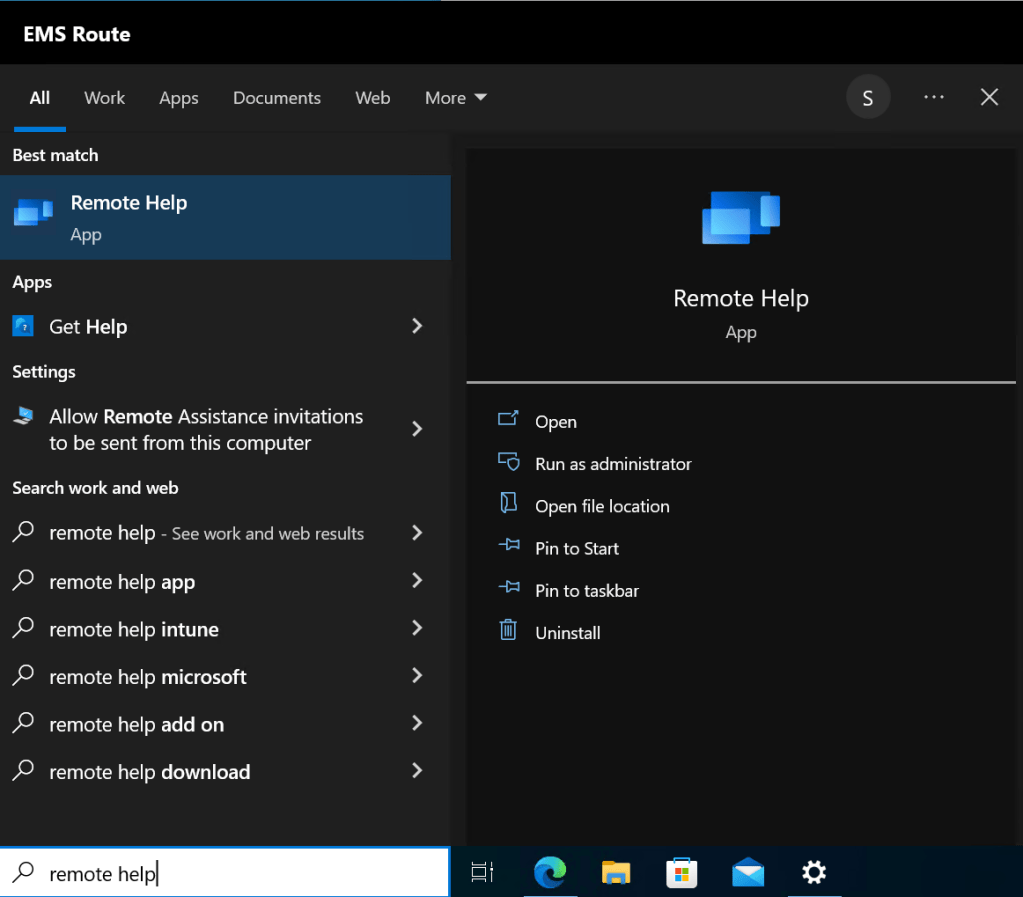
Firewall Rules Considerations
Create the below exceptions needs to be created in Defender Firewall if needed. Check the below locations to be whitelisted.
- C:\Program Files\Remote help\RemoteHelp.exe
- C:\Program Files\Remote help\RHService.exe
- C:\Program Files\Remote help\RemoteHelpRDP.exe
RBAC – Assign Users to role
By default, the Intune Admin can use this to support users. However since Intune Admin has the power to perform any change in the Endpoint manager tenant, it is advisable to create RBAC within the App.
Intune RBAC permission role Help Desk Operator has all the below options set to Yes.
* View screen
* Elevation
* Take full control
Create a new RBAC Permission Role
- Go to Endpoint Manager > Tenant Administration > Roles > Create > Give a meaningful name > Next

- As shown below, set the options to Yes

- Press Next and add or skip Scope Tags (optional) > Create
- Go to the created role again > Assignments > Give a meaningful name > Press Next
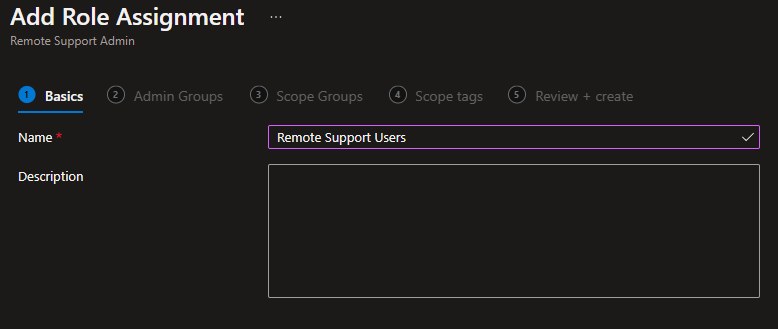
- Assign it to the required Admins group > Next
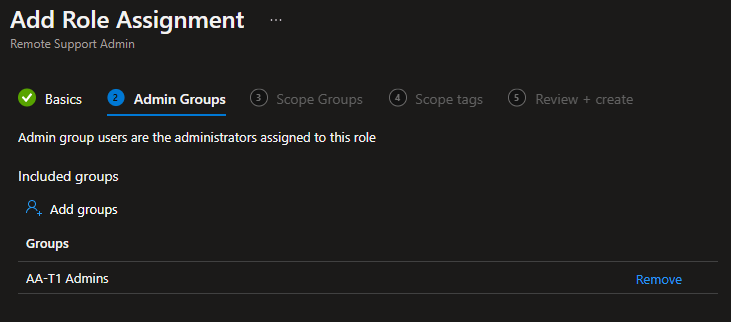
- Set the Scope Groups – These are users/ devices that the relevant RBAC admin can access > Press Next

- Review and Create
Create The Conditional Access Policy for the Remote Help App
This is a newly introduces option where now the admins can specifically add Remote Help as an app in Conditional Access Policies to explicitly request to complete the MFA challenge. This is an added layer as bad actors use remote support tools widely to get into computers.
Install-Module Microsoft.Graph -Scope CurrentUser
Connect-MgGraph -Scopes "Application.ReadWrite.All"
Create a Service Principal using Remote Assistance Service and the AppId 1dee7b72-b80d-4e56-933d-8b6b04f9a3e2
New-MgServicePrincipal -AppId "1dee7b72-b80d-4e56-933d-8b6b04f9a3e2"
Once you run the command, a new Service Principal with the above AppId will be created with the App name RemoteAssistanceService
- Create the Conditional Access Policy as below. Select RemoteAssistanceService from the apps that need to be included
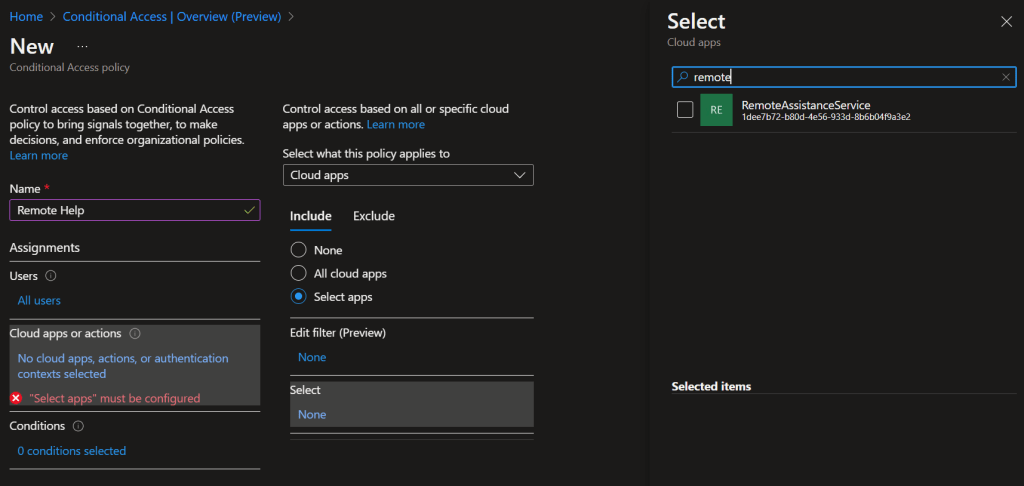
- Make sure you set the Grant option with Require MFA or setup other required Strong Authentication option
How to Use
Now that we have completed the groundwork, let’s see how this is working in the Intune environment.
Person who is providing help
IT admin to go to the Intune portal > Devices > Windows > Select the device to support > click on the 3 dots . . . and select New remote assistance session
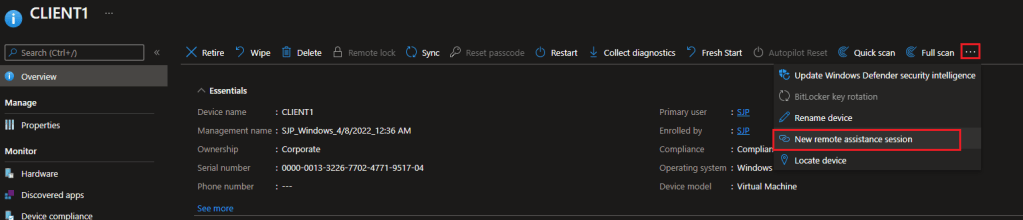
This will open up a side pane. Click on Launch Remote Help

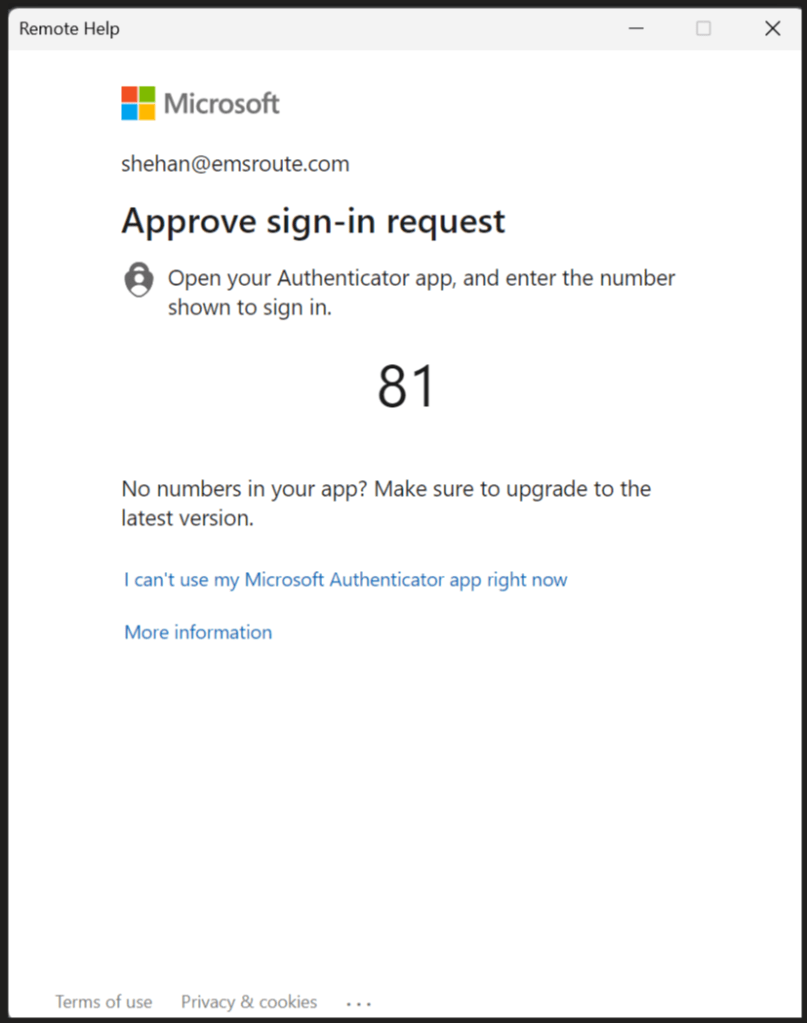
Admin to sign-in to the remote app and complete the MFA challenge
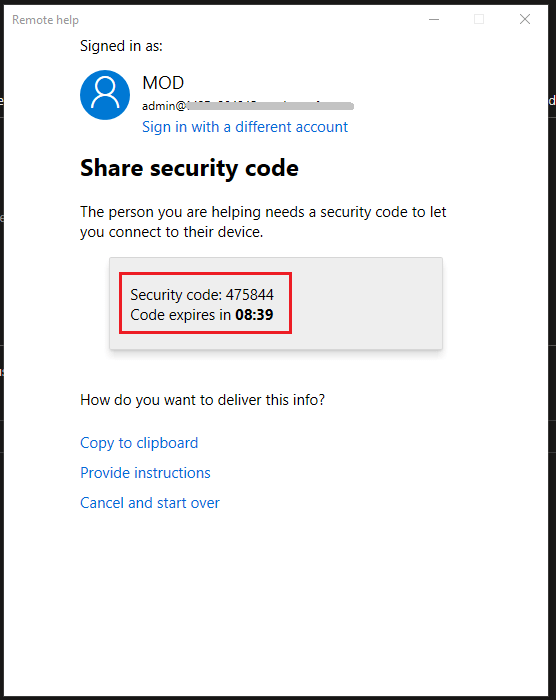
Click on Get a Security Code button

Person Who is Asking for Help
And now the Admin will be presented with a code that has a lifetime of 10 minutes
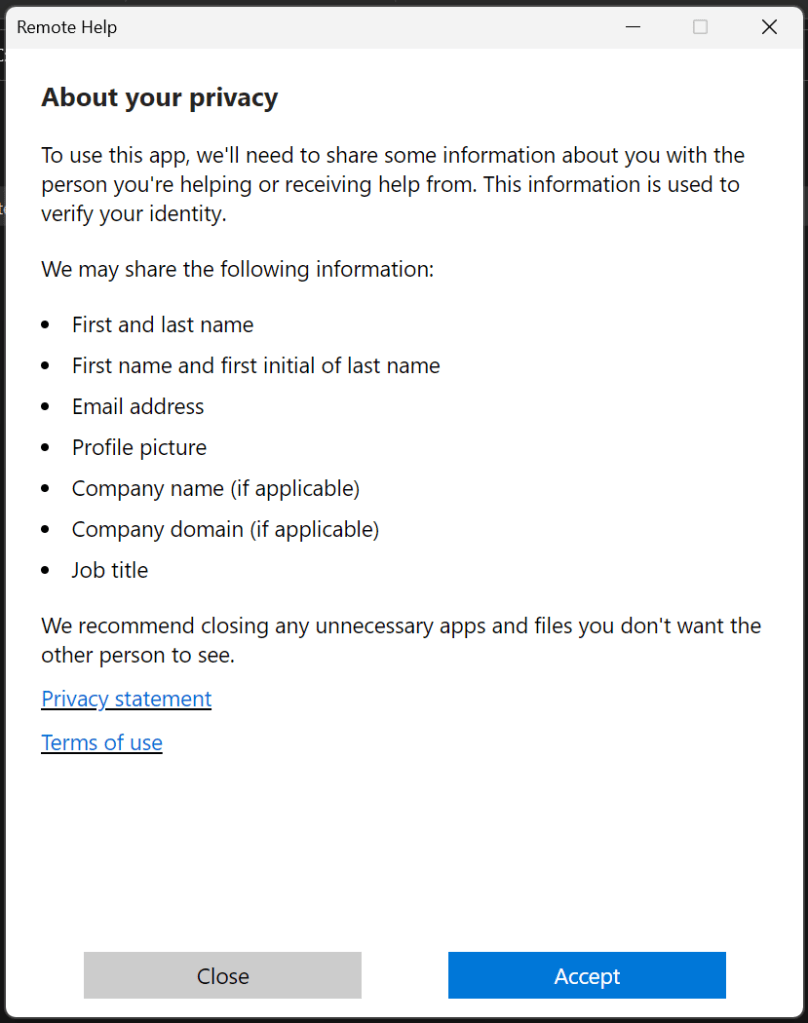
Now Sharer to open the Remote Help app, complete MFA and accept the legal notes for the 1st time use
Sharer to complete the MFA challenge as well
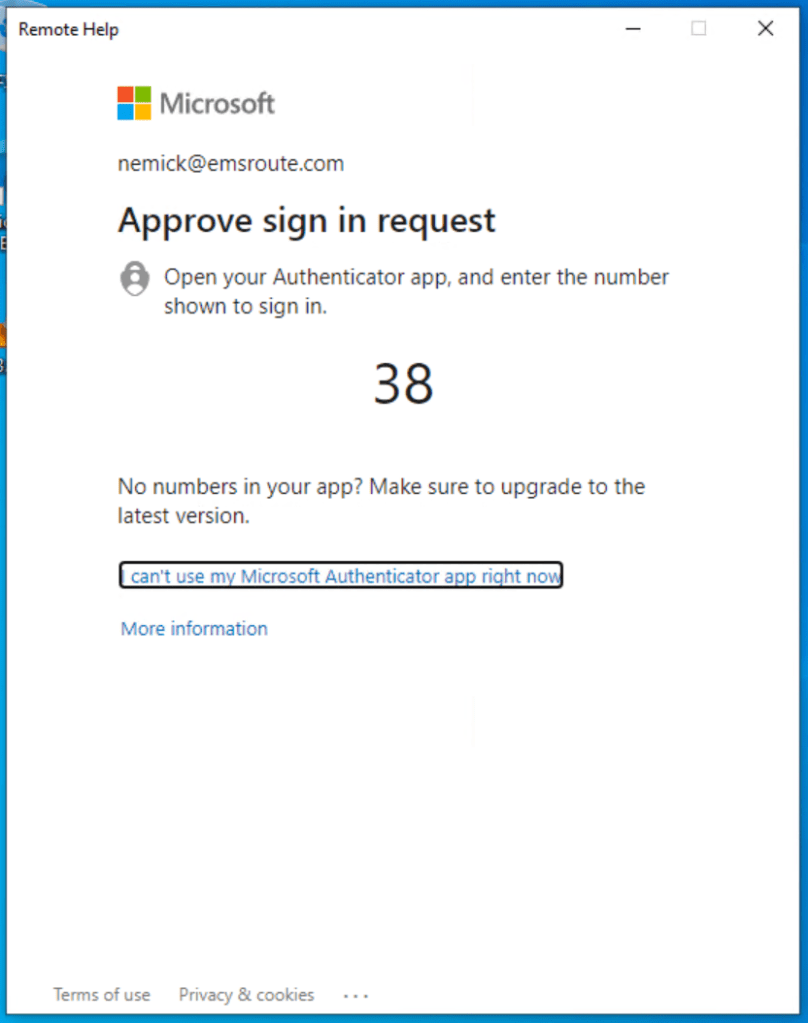
Key in the 6 digits that Admin instructs to enter and proceed
Sharer will see below
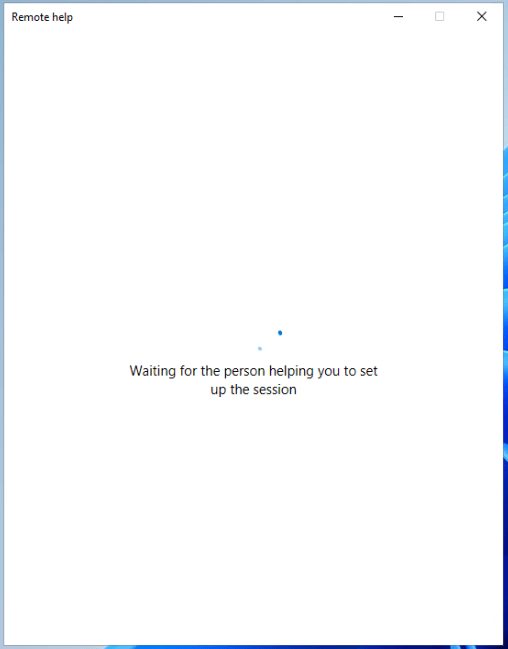
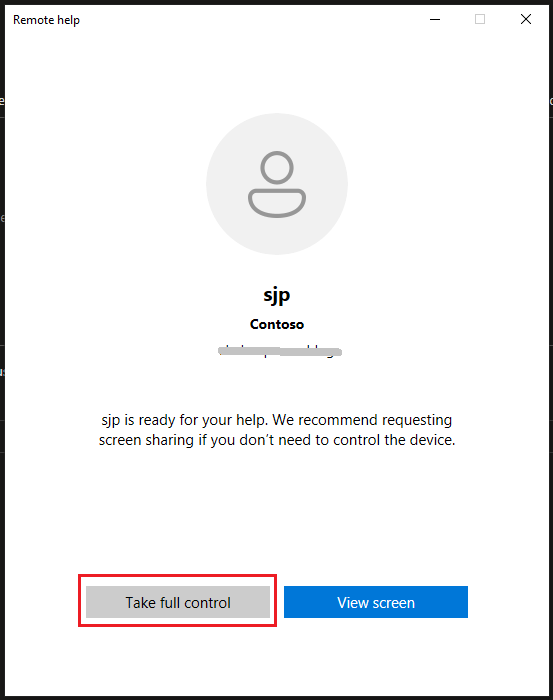
While the IT admin can see below. At this stage, Admin can Take full control or just View screen
Now back to the Sharer, They can see the below screen and need to press Allow

And Viola! The screen sharing will begin

Initiating Chat in the App
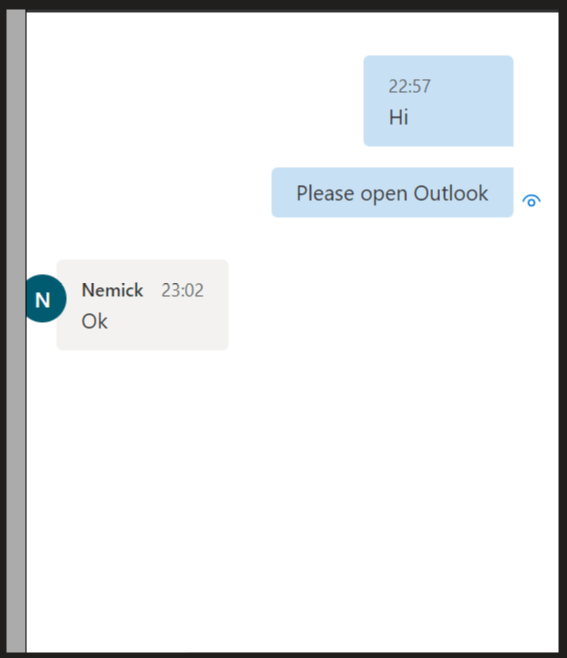
Click the icon shown below to initiate a chat with the other side. They will get the chat window popped up on the screen

Restarting the Device Remotely
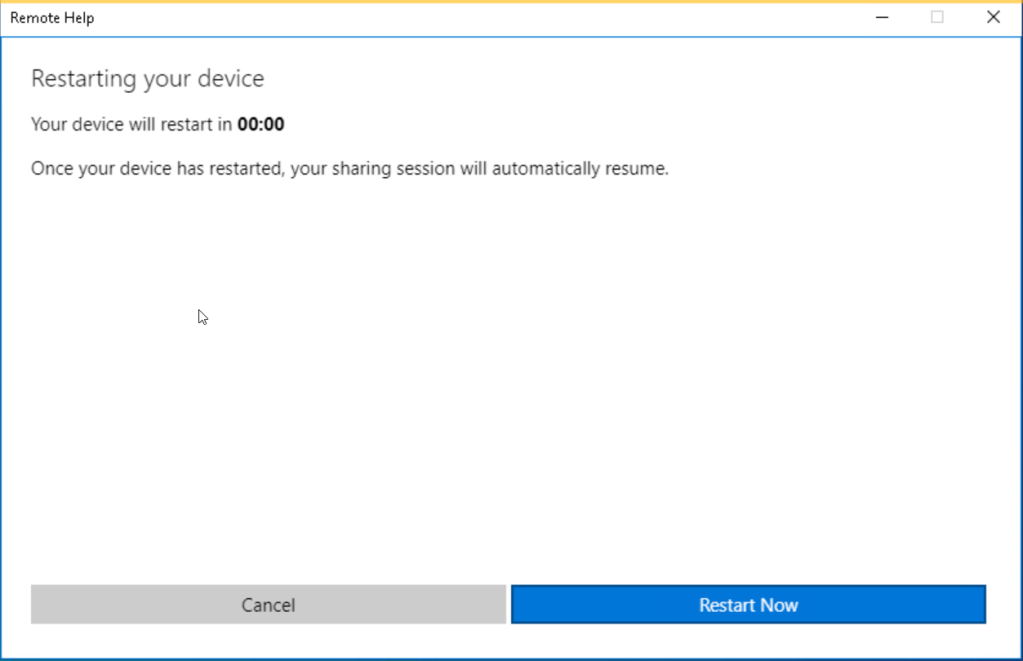
Use the below-shown icon to restart the sharer’s device.

They will get the below message on their computer and once the device is restarted, it will be automatically joined to the previously connected Remote Help session
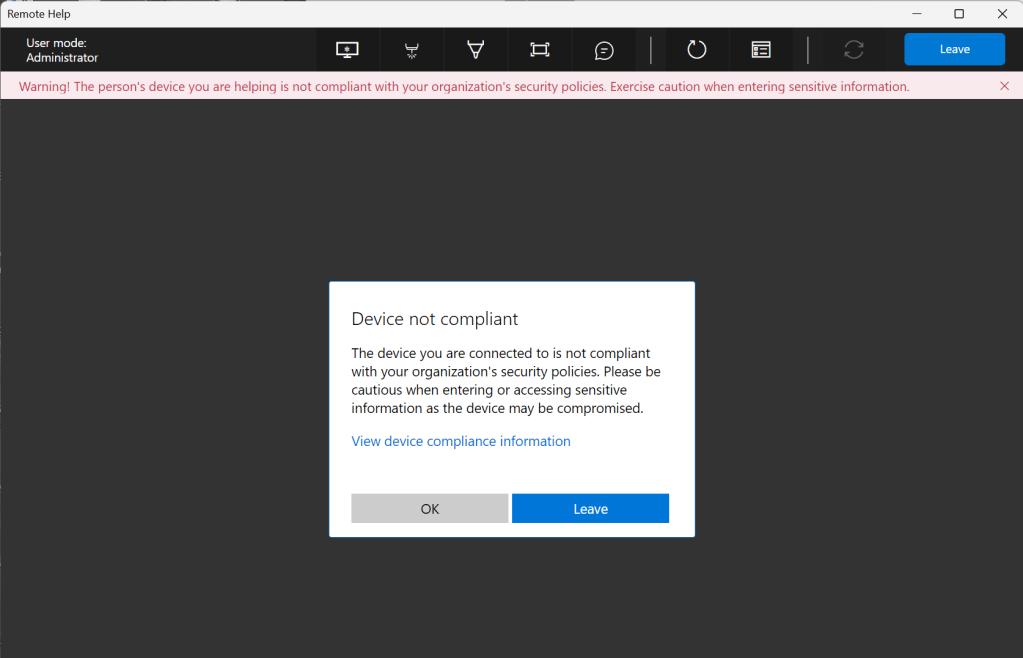
When a Non-Compliant Device in the Mix
- When the Sharer Device is not compliant with the Intune Compliance Policies
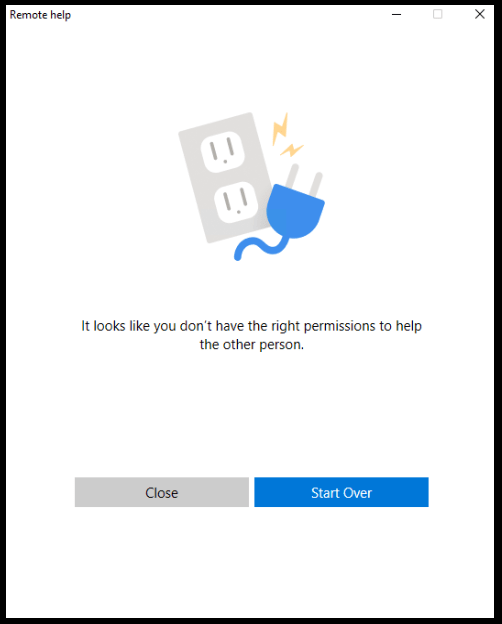
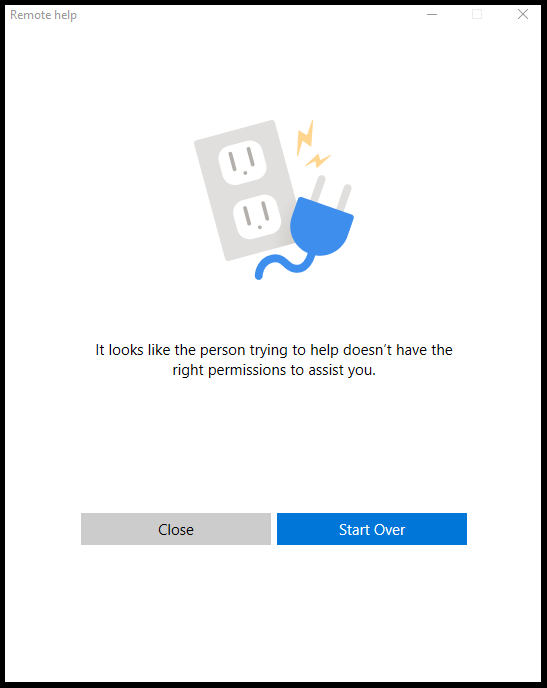
- If someone is not an admin or hasn’t been granted RBAC permissions, they will get the below screen.
Helper Screen
Sharer Screen
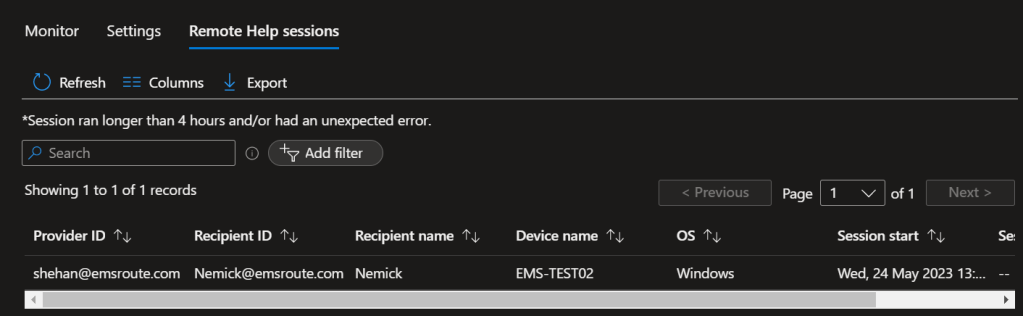
Monitoring Remote Help Sessions
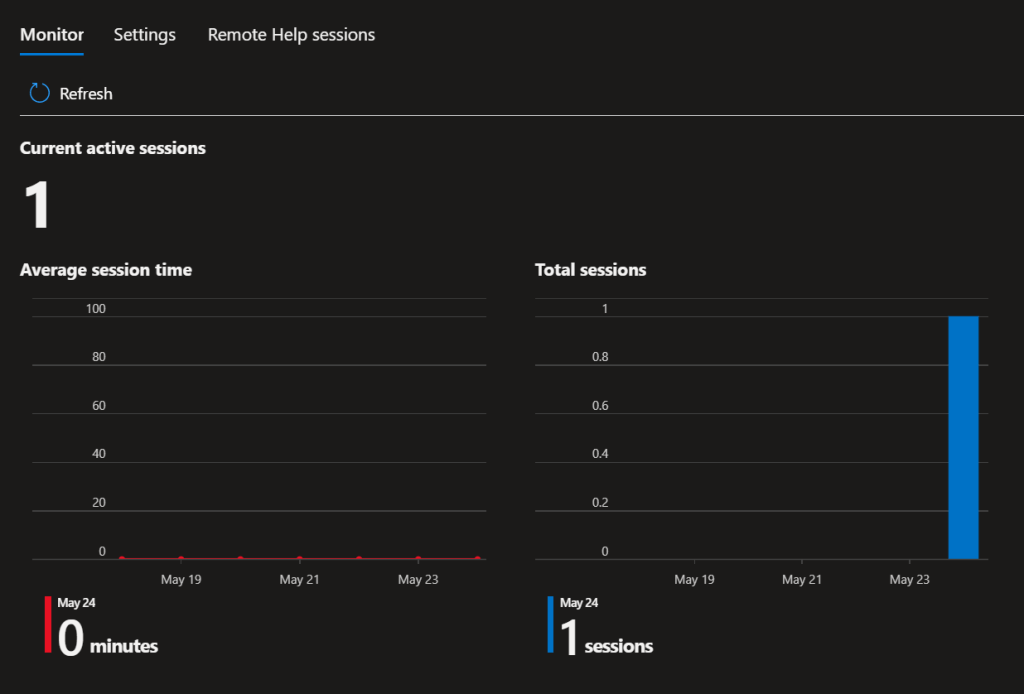
Intune Portal > Tenant Administration > Remote Help
Use the below tabs to monitor the Remote Help sessions.
Monitor Conditional Access Sign-in Logs
Look for the Application == RemoteAsistanceService and its sign-ins if you need to monitor the MFA behavior for the Remote Help app
Wrapping Up
Intune is going to be a one-stop shop for all device management tasks sooner or later and Remote Help is one helpful tool from the tool box. Hope this guide was helpful for you to plan your remote tool deployment as well
Discover more from EMS Route
Subscribe to get the latest posts sent to your email.


Hi, when there is the possibility to connect to the device even without the presence of the user I will surely implement it instead of team viewer.
LikeLike