I was using EasyEntra for the last couple of weeks and was impressed by its usability and security. In a situation where you have to manage a few Entra ID tenants at the same time in an organization or in a legit MSP type scenario, rather than opening a few browser sessions to jump from one tenant to the other, or opening one blade to the other, using EasyEntra will make your life easier. I want to list down some of its capabilities below which will also help you in your EasyEntra journey.
Right off the bat, EasyEntra has addressed the most demanding user requests that are usually flooding into a Service Desk (Internal IT or MSP setup) from requesting a new user to requesting mailbox delegation, bringing them all into a single pane of glass and enabling the engineers to work on them resulting a faster issue resolution with extra care to overall security.
First thing first, EasyEntra Installation and Platform Support
This is a very light-weight software that can be installed and run on any Windows version from Windows 10 and later, and Windows Server 2019 and later. This removes the burden of the typical scenario where the management tools to be installed on a single device (a “tool Server” perhaps) and manage it centrally, however a this has the feasibility of installing on a shared management server, domain joined, non-domain joined, Entra ID Joined device.
In this article I want to specifically look at 10 features that will help you to decide that EasyEntra is the right product for your IT operations.
- Security
- Ease of working with Multiple Tenants
- Virtual User Templates for Cloud Users
- Reports
- Providing Mailbox and Calendar Permissions in One Go
- Taking the Guesswork Out of Decommissioning Users
- Ease of Managing Windows LAPS
- Manage BitLocker Keys Easily
- Run Delta Sync Without Jumping to Another Server
- Vital User Management Options (i.e. MFA, Sign-in Sessions)
- Wrapping Up
Security
Works with Entra RBAC
I really liked how EasyEntra respects the Entra ID Governance configuration. It requires the proper access elevation with your Privileged Identity Management setup and then authenticate against Microsoft Graph.
If you are concerned if this another Entra application that requires Graph API permissions to access Entra ID information, NO, it does not. This goes with the standard Microsoft Graph API tool access. In simple terms, when you are authenticating against MS Graph and EXO, it uses your details to look for graph permissions. No intermediate app looking for graph permissions.
Supports Passwordless. FIDO2 support is available in EasyEntra where you can adhere to phishing resistant methods when connecting to the tool. This gives you that assurance that EasyEntra is moving parallel to the standard Identity security.
Sign-Logs and Auditing
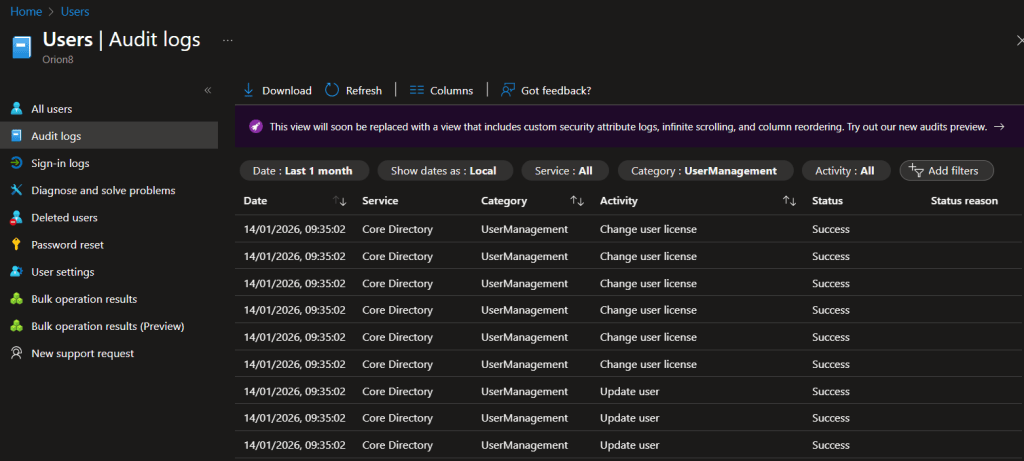
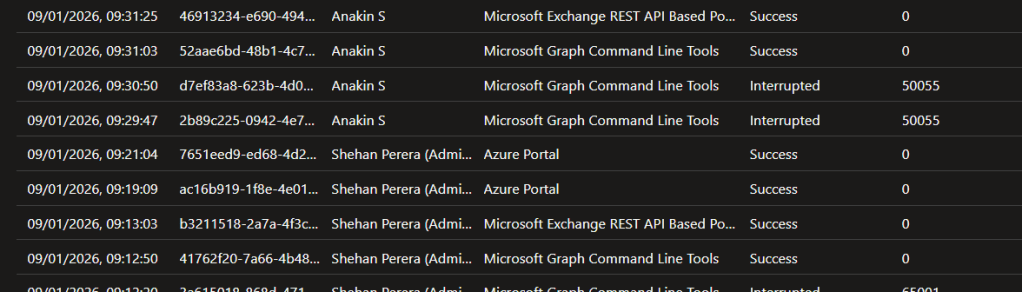
Since this is accessing the inherent Microsoft Graph, it will log all the actions in Microsoft Entra Audit Logs and Sign-in Logs as other actions.
Communication With Other Components
This will be helpful if you have stringent firewall rules to block/ allow traffic to limit network activities.
| From | To | Port |
|---|---|---|
| EasyEntra Installed server/ workstation | EasyEntra Licence server (optional) | TCP 443 |
| EasyEntra Installed server/ workstation | Microsoft Graph PowerShell | TCP 443 |
| EasyEntra Installed server/ workstation | Exchange Online | TCP 443 |
| EasyEntra Installed server/ workstation | Active Directory | TCP 389 | TCP 445 |
| EasyEntra Installed server/ workstation | Entra Connect Sync | TCP 5985 |
Ease of working with Multiple Tenants
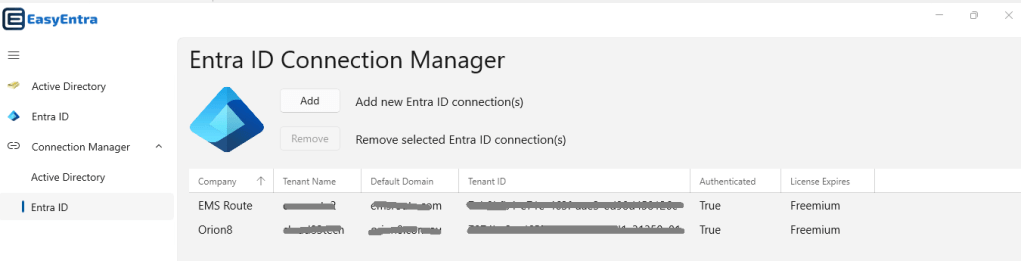
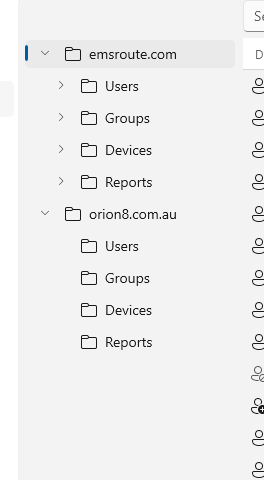
As mentioned below, you can add your Entra ID tenants and authenticate for MS Graph and EXO. This will be a time saver when you have to battle with multiple tenants and Exchange Online environments. This will not act as one RBAC to rule all tenants where it honours the RBAC in the relevant tenant and always requires elevating permissions prior.
✨Useful tip: Once the tenants are added to EasyEntra, it only requires a single mouse click and does not require re-authentication each time when you need to navigate.
Virtual User Templates for Cloud Users
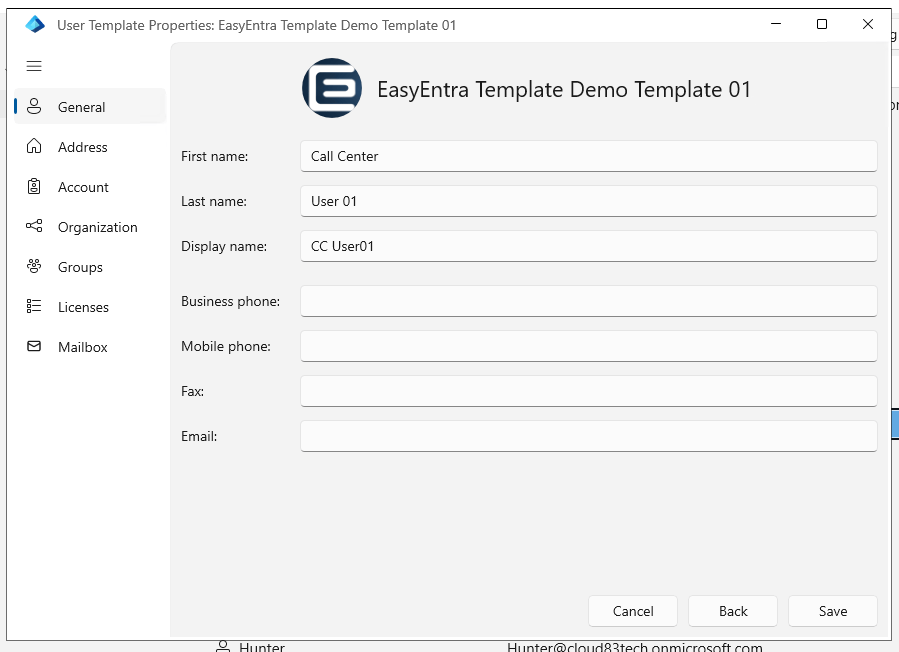
This feature will surely make your life easier. Create the template once, re-use it. For an example if your workplace is Contractors heavy, you can create a template for those Contractors, with the required license, groups they should be in and the mailbox info. and its a matter of creating a user from the template later. Templates can be applied for the cloud only users and it will be created as a disabled cloud user in Entra. These will not be added to any Dynamic group or will not consume any license. Using virtual templates will make sure only pre-defined permissions will be applied to the new user object.
Virtual Templates will help you to pre-define some essential items which will be very handy when you have identified the user personas.
Some template settings for quick user setup
- Mailbox settings
- Organizational information
- User type
- Assigned groups for access to Teams, SharePoint, email distribution lists, and similar workloads.
✨Useful Tip: User type setting (Member or Guest) is useful if you have a predefined entries for a Guest user, or Guest user template depending on the guest organization you are collaborating with.
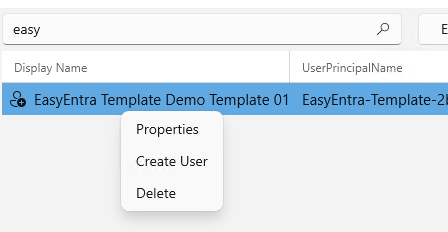
Creating Users from the Virtual Template is easy when you have the templates ready to go.
Reports
EasyEntra have addressed two main reports in here at the time of writing. Mailbox delegated access and disabled users with licenses.
Mailbox Delegation Reports
Mailbox delegation – With incorrect delegation it can harm the organization and it’s users. Managing delegation and making sure the right person have the right delegation is important. By running a quick report will give you the visibility of the delegation information. This shows you
- Send As Permissions, Send on Behalf of permissions
- Full Access permissions.
License Based Reports
And 3 license based reports you can export.
- Disabled users with licenses
- Inactive users with licenses
- Unused licenses, meaning users with licenses assigned but not actively using services like Teams, OneDrive, or Exchange Online
Specially, license-based reports can help you to reduce your subscription costs easily. Staled accounts with a valid license are not a new problem in an organization. This happens mainly because of the poor visibility of the assignments. This report will make provide you with the information so you can go ahead and take that informed decision.
Providing Mailbox and Calendar Permissions in One Go
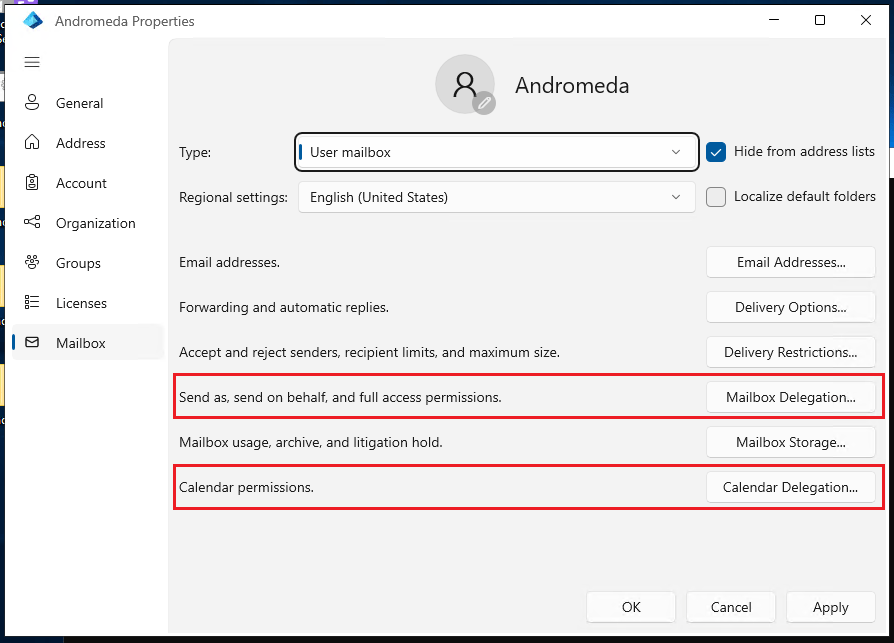
Most of the new user creations comes in with mailbox and/ or calendar delegation request. A shared mailbox access request or permissions to send as another user or the Executive Assistant requesting to access the CEO’s calendar. As a standard practice this needs to be done in Exchange Online portal. With EasyEntra, this can be performed on the same app without moving to the browser. As mentioned before, it honors the EXO permissions you have so it won’t go beyond the access privileges you already have elevated.
Taking the Guesswork Out of Decommissioning Users
User Decommissioning is important because stale accounts can be a threat to the security as well it can imply bad user account lifecycle with access to resources, active mailboxes with access to other mailboxes in most cases and active licenses.
EasyEntra has made it easy where you don’t need to look for all locations that needs to be addressed as in Entra portal they can be in different blades and locations in the AD regardless the state is Hybrid or a Cloud Only user.
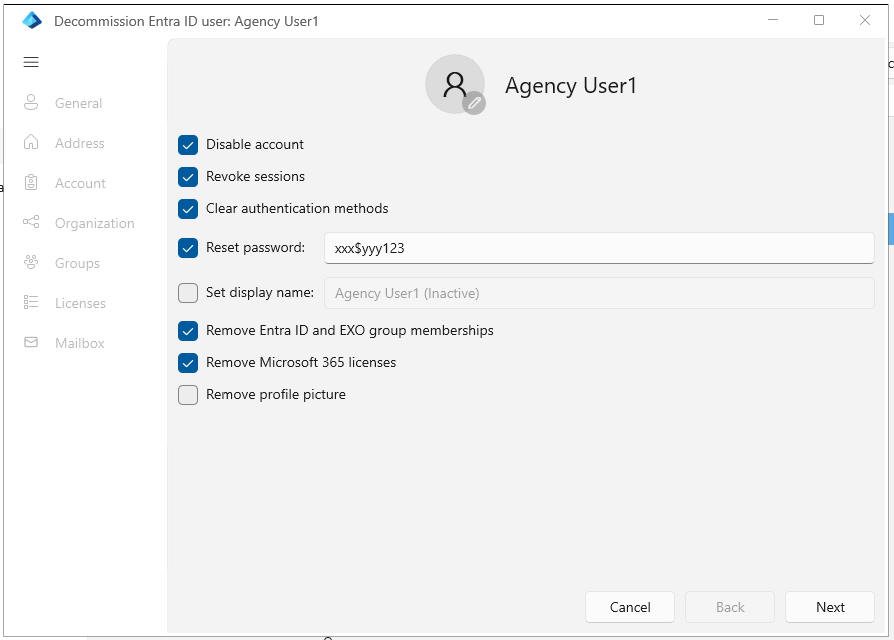
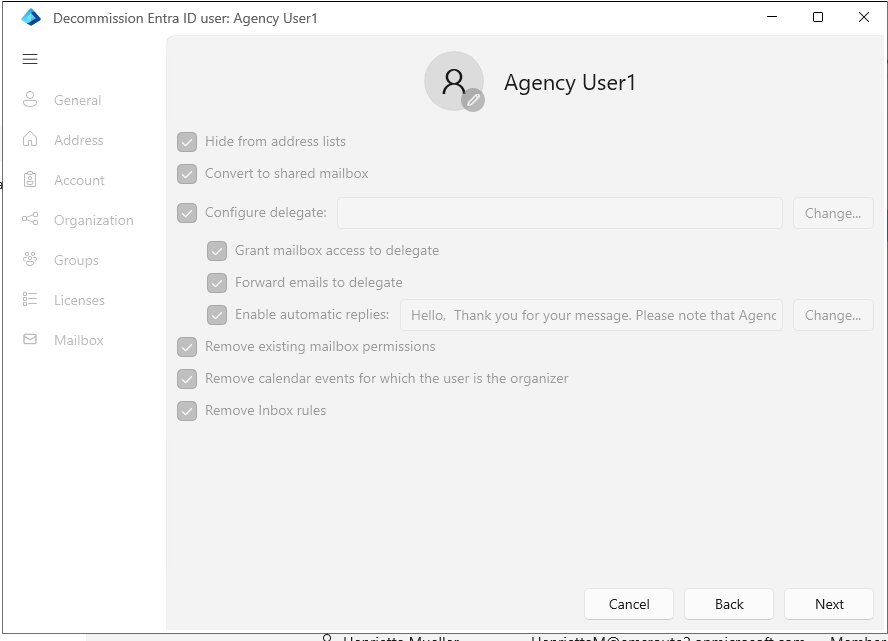
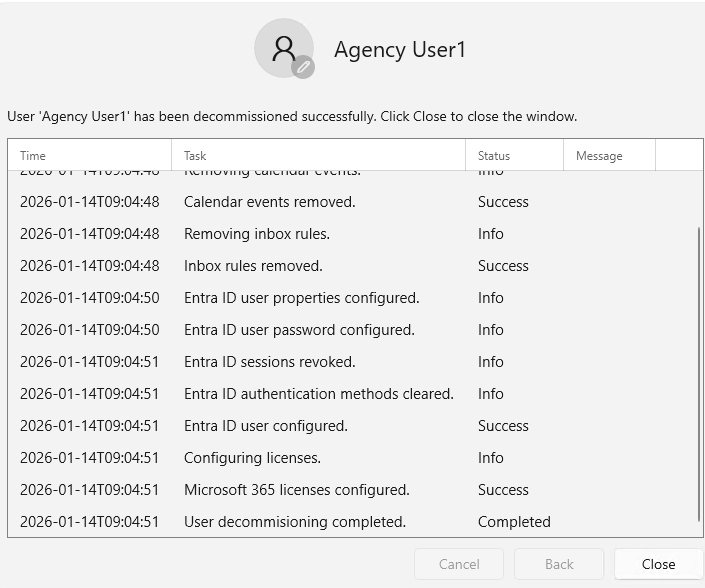
It is vital to see the Decommissioning process. This shows you the steps it went through to complete the process.
Ease of Managing Windows LAPS
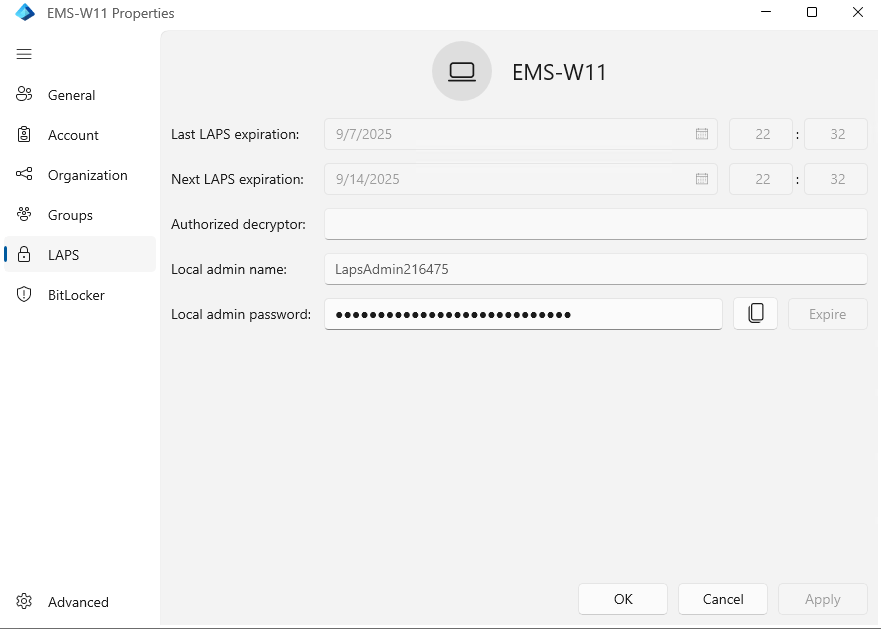
Once you have Windows LAPS configured, you can use EasyEntra to retrieve the credentials when needed, While LAPS is managed via Entra, this will help you to quickly manage the device required.
Manage BitLocker Keys Easily
Same as Windows LAPS, when you have configured BitLocker, the information can be easily retrieved with EasyEntra.
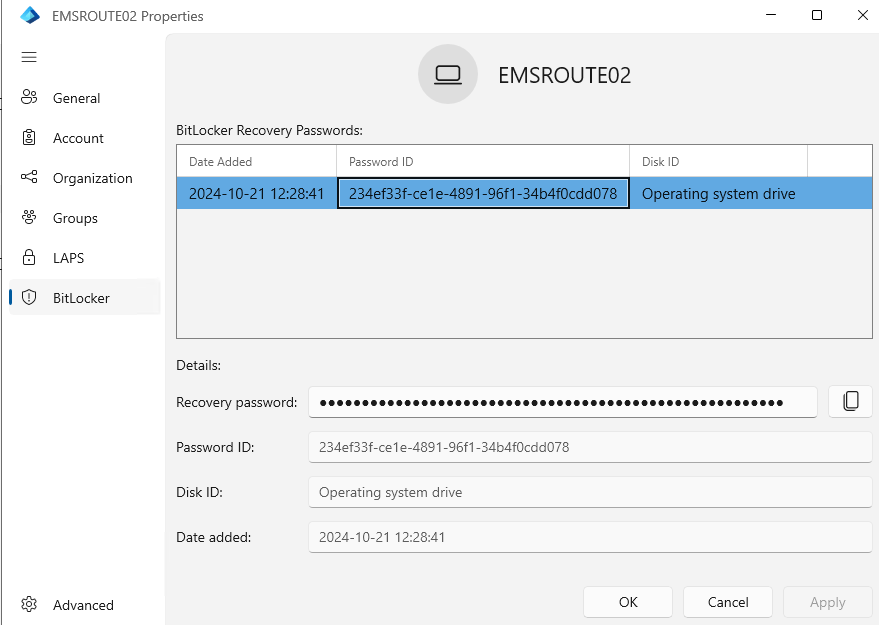
✨Useful Tip: Using bl= in Search devices section will list down all the devices with BitLocker, and if you type the first few characters of the recovery key ID, it will narrow down to the exact key you looking for. This is a great time saver compared to the behaviour in the Entra portal.
Run Delta Sync Without Jumping to Another Server
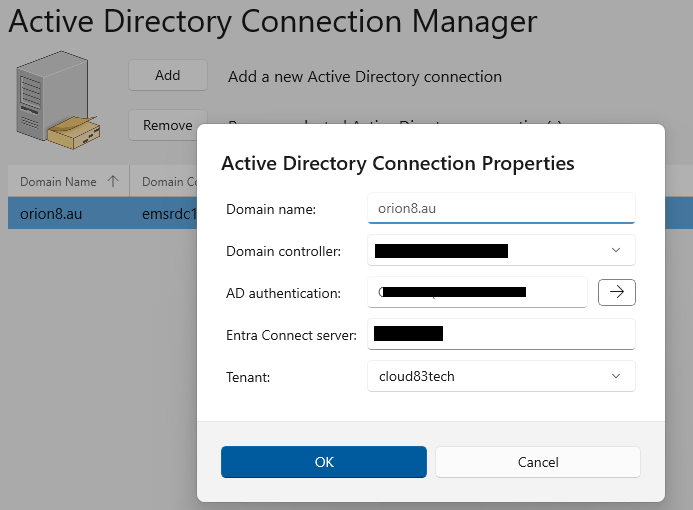
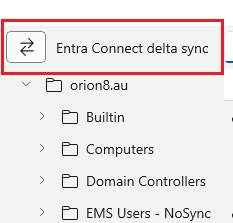
This is one of the options where it truly makes the IT Admin life easier. How many times in the past where you had to jump on to the Entra Connect Sync server to run a delta sync so your changes will be replicated to Entra? EasyEntra have made this easier! When you have the correct privileges and configured the Entra Connect Sync into your Active Directory instance in the Connection Manager, it’s just a matter or clicking a button and the process will run for you.
Vital User Management Options (i.e. MFA, Sign-in Sessions)
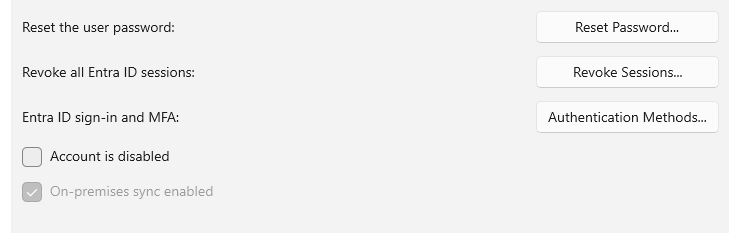
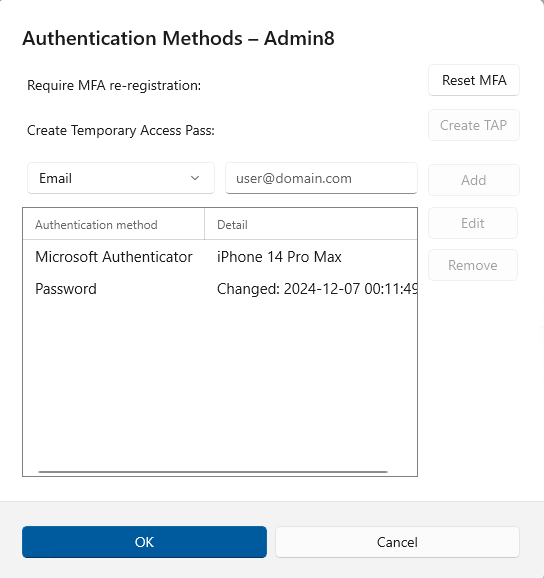
Revoking MFA sessions, understanding user authentication methods and configuring add/ remove methods or resetting MFA can be easily done in the same user account properties section. This can save you time while understanding things like last password changed in troubleshooting scenarios.
Wrapping Up
There are a lot of other good things packed in this tool and they all are guaranteed to reduce the admin overhead. Overall, EasyEntra strikes the right balance between security and usability, enabling teams to work more efficiently without compromising existing security frameworks, while providing the guidance needed for smooth and correct adoption.
Discover more from EMS Route
Subscribe to get the latest posts sent to your email.

