What Happened Earlier?
If the Windows device is not Entra Joined or Entra Hybrid Joined, meaning in a BYOD scenario, the user has the option of register the device or the specific app they are trying to sign-in to the organization’s Entra. This is typically called a Workplace Join.
Workplace Joined device will typically create a device record n Entra devices with the status “Entra Registered”, so it can control the SSO for the user’s Work of School account within the device.
Before this change happened, it was bit of a mix bag of situations where the advise on the prompt screen is a bit confusing.
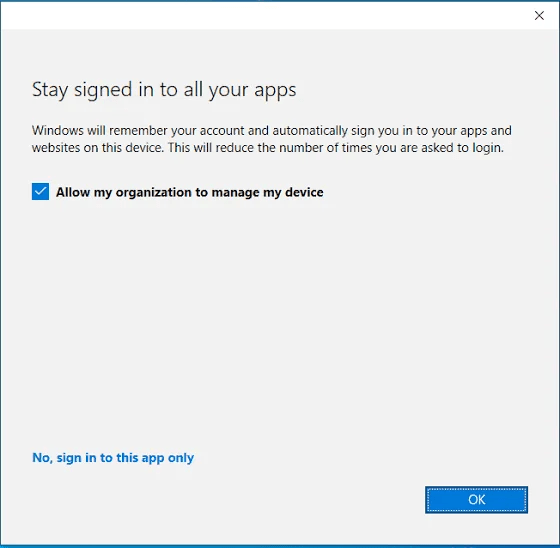
What if I don’t check the box? etc etc.
This being the device is enrolled in Intune in 90% of the time and gives headaches to admins. Also This will Enroll the BYOD as any other device enrolment but the Ownership will be Personal rather than Corporate.
Simplified Prompts with Clear Choices
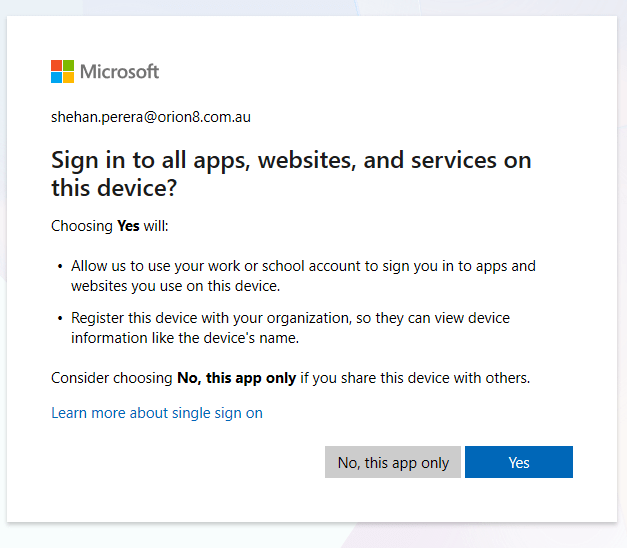
If you press NO, the device will be ONLY registered in Entra but will not be enrolled in Intune. Pressing YES will enroll the device in Intune.
While the device will be joined in the Entra Hybrid Joined or Entra Joined, chances are there is already a record called Entra Registered and maybe there can be a multiple records with the same status but with different usernames.
While this will help you to control the BYOD Windows devices with Conditional Access Policies, there’s nothing much for the corporate owned devices.
The advice to the users is always select “Only this App” if they get the prompt for the MDM enrollment. Because It’s trying to register the device so the user doesn’t have to do the same when authenticating other apps and services.
What’s The Change?
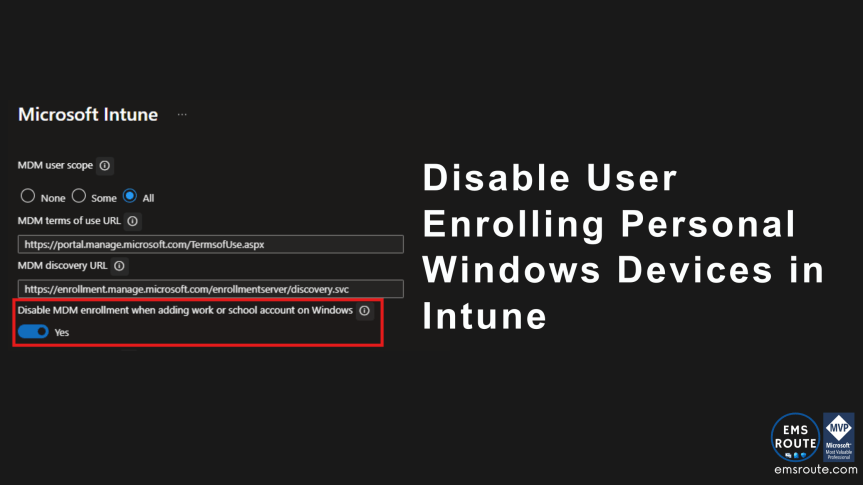
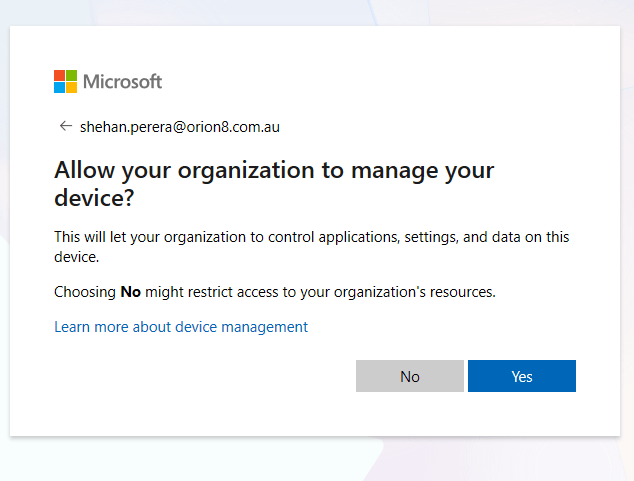
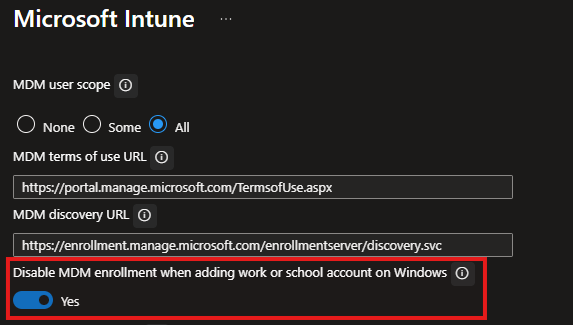
Currently in Public Preview, now the Intune admin got the option to block this globally for all users in the MDM scope. With this change, the user will no longer get the option to press YES or NO for the Allow your organization to manage your device prompt.
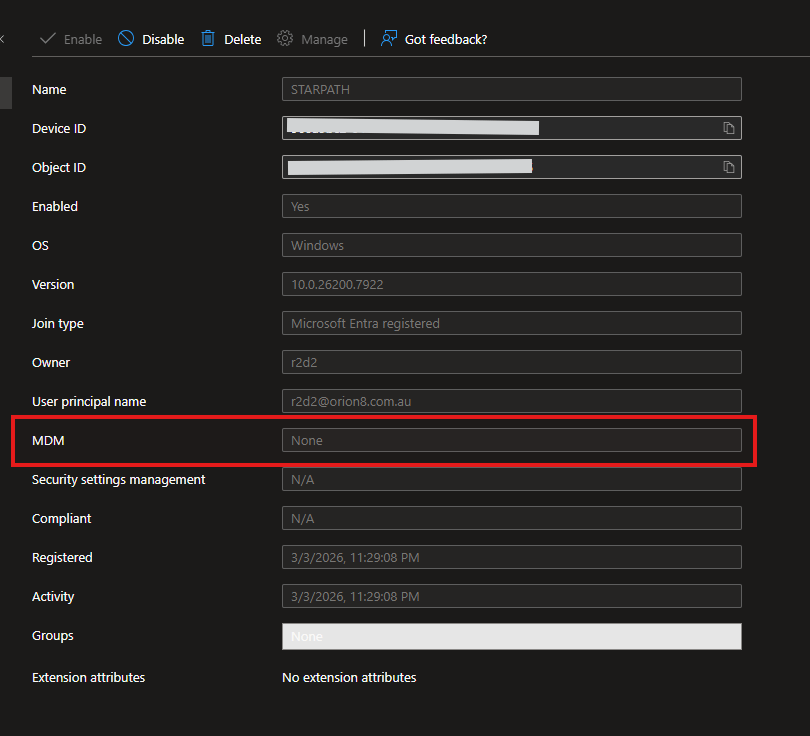
There will be an device record created in Entra, however the device will not be enrolled in Inrtune.
Wrapping Up – Something I did Notice
Since this is still in Public Preview, the second account addition to the same device did not go through the same process even with the switch set to ON. It just registered the device and enrolled in Intune. Removing that from Settings -> Access work or School –> Disconnecting the account went back to the same screen as above with MDM set to none.
Discover more from EMS Route
Subscribe to get the latest posts sent to your email.
 EMS Route