
This may seem a bit of an obvious topic. Organizations are managing a lot of aspects of the Edge browser but leaving the browser extensions section unmanaged or let the user to install extensions as they wish. The outcome of this can be critical as browser extensions are the starting point of many coordinated attacks. Extensions with embedded malware can be disguised as harmless items in plain sight and can be silently monitoring device activities and transfer information to the bad actor or perform something even worse once installed.
- A malicious browser extension can perform various tasks including
- Types of Extension Behaviour
- Guardrails: Microsoft Intune to Manage browser Extensions
- Understanding Risk Using Microsoft Defender Vulnerability Management
- Best Practices to Keep Malicious Extensions Away
A malicious browser extension can perform various tasks including
- Create a browser notification with the fetched content and open a new tab on notification click
- Capture content of visible tab using “chrome.tab.captureVisibleTab”
- Return browsing history
- Fetch all browser cookies, same as in the initialization code
- Open a new tab with the given URL
- Record key stroke activities and report to the C2 server
Types of Extension Behaviour
- There can be harmless extensions out there that does the job as exactly as advertised in the store but silently change the behaviour into malware maybe with an update sent by the threat actor, these types of extensions are hard to track as they are legitimate extensions which were clean at the installation.
- Phishing emails that lure the user to install extensions for various reasons. These are straight forward malicious and will take over the browser activities from the scratch.
Guardrails: Microsoft Intune to Manage browser Extensions
This can be managed via Intune for Chrome, Edge and Firefox browsers.
Chrome and Edge
Chrome and Edge settings can be configured via the Settings Catalog
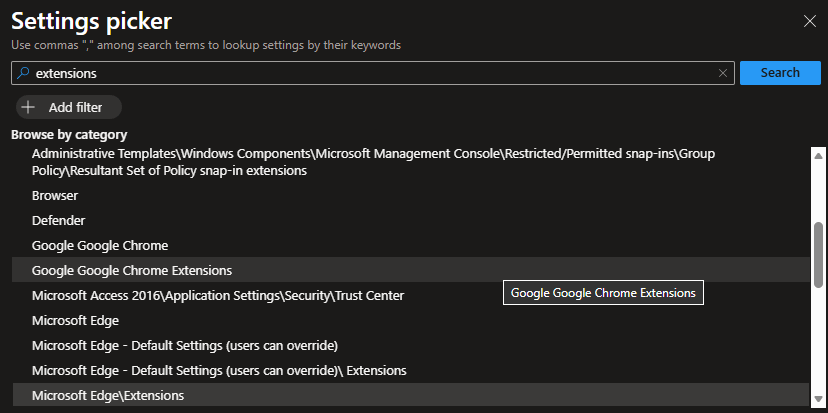
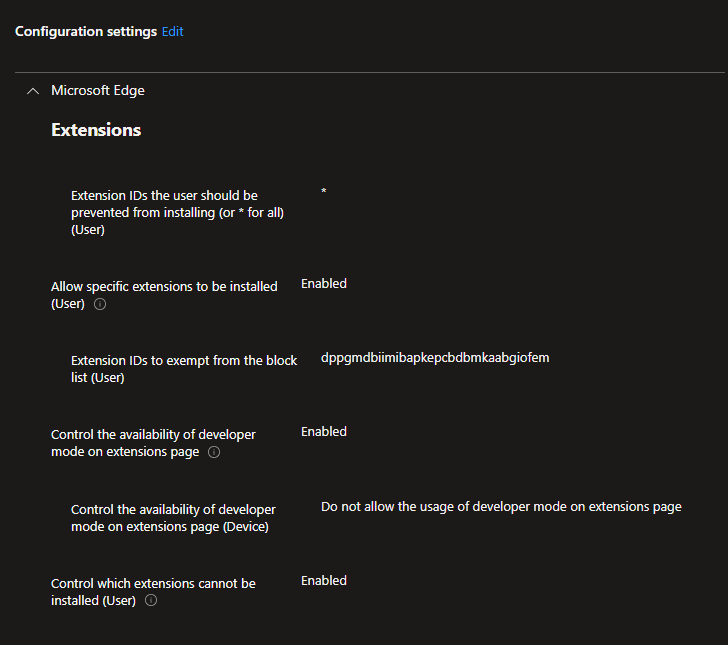
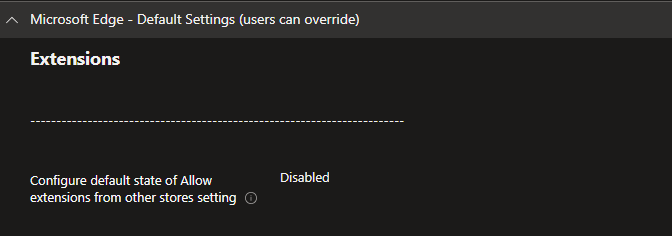
If you are using Microsoft Intune, this is something very easy to tackle. Add these settings to your Browser control settings list. I have shown the Edge Extension guardrails below.
| Setting | Value |
|---|---|
| Extension IDs the user should be prevented from installing | * |
| Extension IDs to exempt from the block list | add the extension IDs |
| Control which extensions are installed silently | IDs of the extensions |
| Control the availability of developer mode on extensions page | Enabled |
| Control the availability of developer mode on extensions page (Device) | Do not allow the usage of developer mode on extensions page |
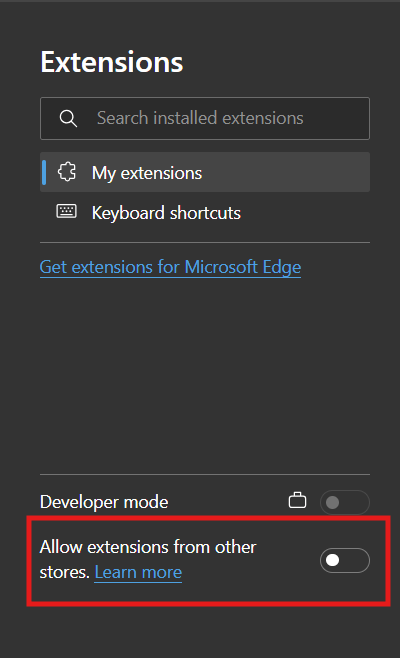
| Configure default state of Allow extensions from other stores setting | Disabled |
Configure Firefox Policies Using Intune
As per the Morzilla Firefox support page, use the below method to add the Firefox ADMX into Intune first
- Download the latest release from our GitHub page and unzip the file.
- Open the file firefox.admx in an editor.
- Sign in to Microsoft Intune at https://intune.microsoft.com.
- Click Devices then Configuration (https://intune.microsoft.com/#view/Microsoft_Intune_DeviceSettings/DevicesMenu/~/configuration).
- Click Create on the Policies tab and then New Policy.
- Select Windows 10 and Later as the platform and Templates as the profile. Click Custom and then click Create.
- Type Firefox Configuration or any descriptive name.
- Enter an optional description.
- Click Next.
- Click Add.
- Enter a name like Firefox ADMX.
- Enter an optional description.
- For the OMA-URI, enter ./Device/Vendor/MSFT/Policy/ConfigOperations/ADMXInstall/Firefox/Policy/FirefoxAdmx.
- Select String for the Data type.
- Copy all of the text from the firefox.admx file into the Value field.
- Click Add.
Once done, you are ready to configure the extension block policy, Use this page for help.
Block All extensions:
OMA-URI: ./Device/Vendor/MSFT/Policy/Config/Firefox~Policy~firefox~Extensions/ExtensionSettings
Value: <enabled/>
<data id=”ExtensionSettings” value=’
{
“*”: {
“blocked_install_message”: “Custom error message.”,
“install_sources”: [“https://yourwebsite.com/*”%5D,
“installation_mode”: “blocked”
},
“uBlock0@raymondhill.net”: {
“installation_mode”: “force_installed”,
“install_url”: “https://addons.mozilla.org/firefox/downloads/latest/ublock-origin/latest.xpi”
},
“adguardadblocker@adguard.com”: {
“installation_mode”: “force_installed”,
“install_url”: “https://addons.mozilla.org/firefox/downloads/latest/adguardadblocker@adguard.com/latest.xpi”
},
“https-everywhere@eff.org”: {
“installation_mode”: “allowed”,
“updates_disabled”: false
}
}’/>
Policy Result
Intune will look like below
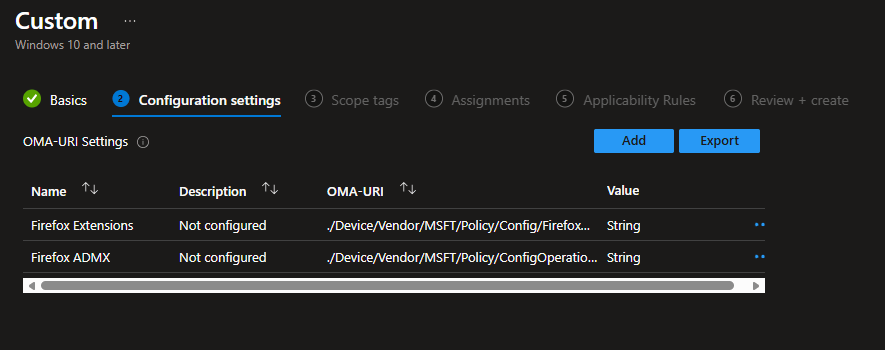
You have the option of assigning the policy to the device or users.
If you check the edge://policy page, you will see the settings as below.

The result would look something like below
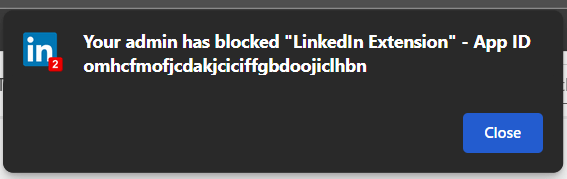
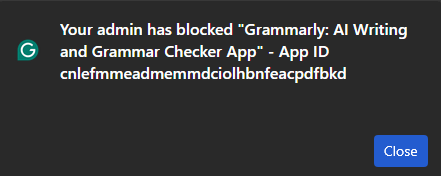
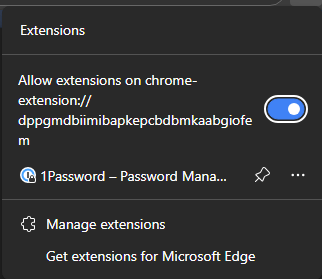
As you can see the allowed extension ID which is 1 Password can be installed.
Understanding Risk Using Microsoft Defender Vulnerability Management
What do you need?
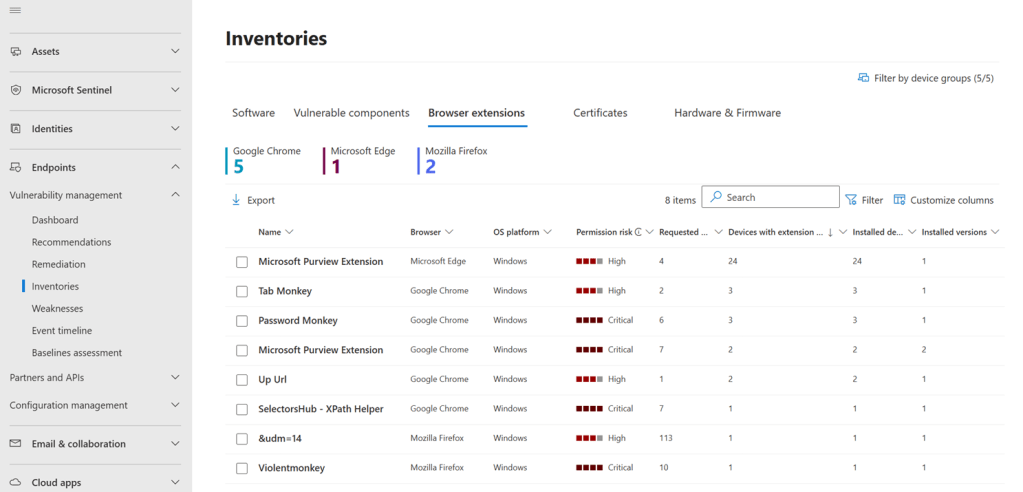
If you are using Microsoft Defender Vulnerability Management, Browser Extensions are visible under Inventories tab. if you are unable to see that, probably you don’t have the Defender Vulnerability Management license added.
If you are already using Defender for Endpoint Plan 2 – Use this link to add a trial license to your tenant https://learn.microsoft.com/en-us/defender-vulnerability-management/get-defender-vulnerability-management#try-defender-vulnerability-management-add-on-trial-for-defender-for-endpoint-plan-2-customers
To add Defender Vulnerability Management as a Standalone license, use this link below
Once you activate the trial, it can take up to six hours for the new features to become available in the portal.
What browsers does this cover?
- Microsoft Edge
- Google Chrome
- Firefox
It will show the extensions installed in your organization as below
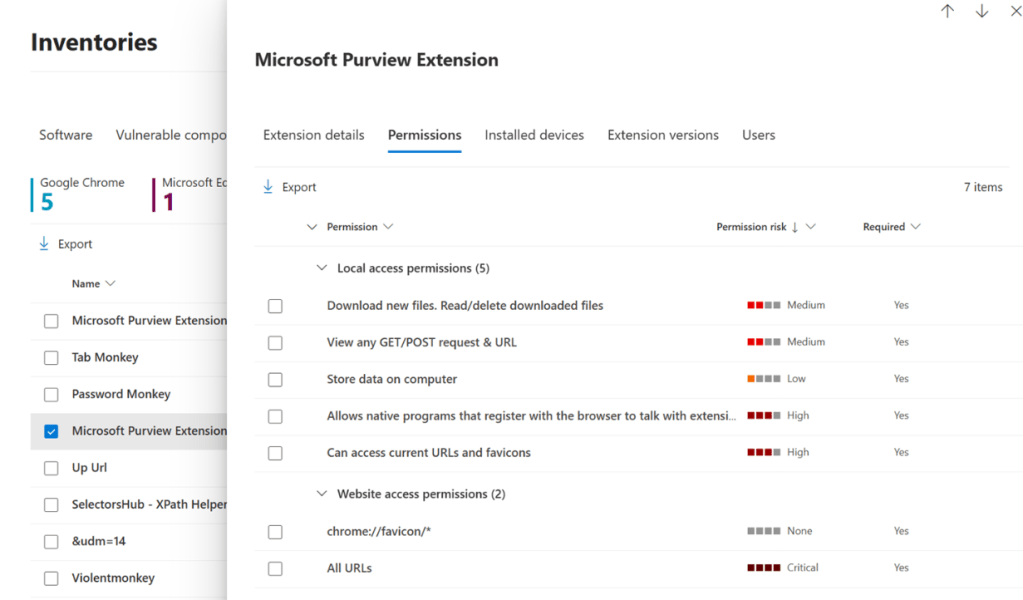
Specifically per-extension permission details
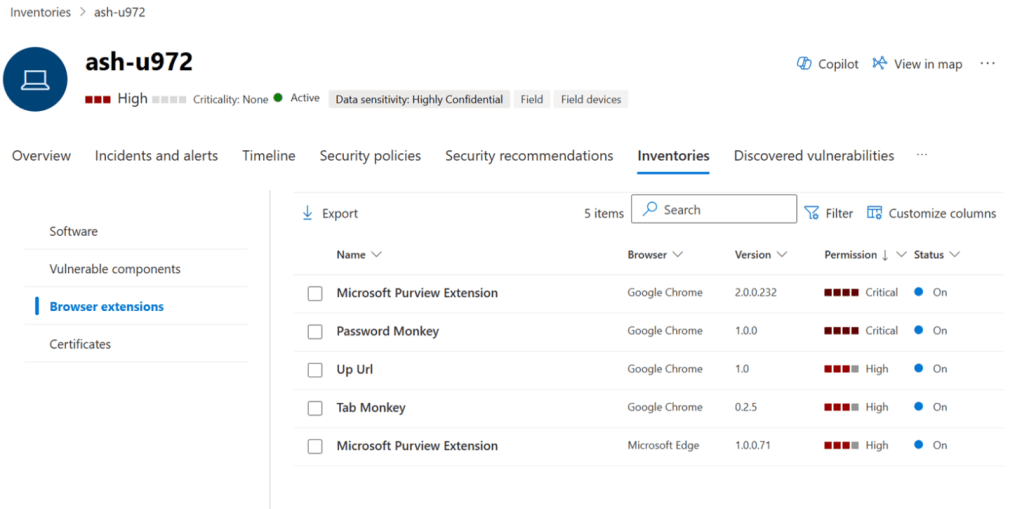
Or per-device installed extensions
Advanced Hunting
Below is a sample KQl query for Advanced Hunting using the hunting tables DeviceTvmBrowserExtensions and DeviceTvmBrowserExtensionsKB
This query shows browser extensions with Medium or High-risk permissions installed across your devices.
What it does:
- Finds extensions that have risky permissions (Medium or High risk)
- Counts how many devices have each extension installed
- Lists each risky permission separately
DeviceTvmBrowserExtensionsKB
| where PermissionRisk in ("Medium", "High")
| join kind=inner (
DeviceTvmBrowserExtensions
| summarize
DeviceCount = dcount(DeviceId)
by ExtensionId
) on ExtensionId
| project
ExtensionName,
BrowserName,
ExtensionRisk,
ExtensionVersion,
DeviceCount,
PermissionName,
PermissionRisk,
IsPermissionRequired,
PermissionDescription
| sort by ExtensionRisk desc, PermissionRisk desc, DeviceCount desc
Best Practices to Keep Malicious Extensions Away
- A Vetting Process Before Enabling Extensions – Like other things such as apps, extensions should go through some sort of a vetting process before enabling that in the browser for the user. This can be a request to install an extension to all users or maybe a set of users depending on the type of work they do, or which is a part of an application which already in use. In either case, there should be a method to verify the extension and what it does. Depending on the extension, a risk analysis must be done.
- Extensions should be a part of the Browser Hardening process
- Frequent analysis of installed extensions using Advanced threat hunting and Defender Vulnerability Management. This will help you stay on top of the installed extensions as once considered as harmless can turn to dark side quiet easily.
- Block Allow extensions from other stores using Intune. This is self-explanatory
Discover more from EMS Route
Subscribe to get the latest posts sent to your email.
 EMS Route