
Mark the calendars and make the necessary reminders – 15 Oct 2024 as this will be the day that this enforcement will come into play. This is a good initiative as it will apply the extra layer of protection to the set of applications below. As you can see most of the applications listed below are used to perform the elevated-level tasks and this will enforce MFA for all sign-in attempts.
Don’t mix this up with MFA enforcements for admin roles. Yes, while that is equally good, this does not specifically enable the applications that do the critical tasks unless you specify it in the Conditional Access Policy.
- What is this Enforcement?
- Enforcement Scope
- How Do You Prepare?
- Recommended Actions
- Wrapping Up
What is this Enforcement?
Microsoft has recently announced that they will enforce MFA on the accounts that are being used to login to some applications as a part of enabling MFA to 100% of the users in organizations.
🔗 Check this blog for the announcement
Enforcement Scope
What Accounts Will Be Affected?
- All users (regardless of the RBAC) who log in to the below applications and perform any Create, Read, Update, Delete (CRUD) operations.
Applications and enforcement timelines
| Application Name | App ID | Enforcement phase |
|---|---|---|
| Azure portal | c44b4083-3bb0-49c1-b47d-974e53cbdf3c | Second half of 2024 |
| Microsoft Entra admin center | c44b4083-3bb0-49c1-b47d-974e53cbdf3c | Second half of 2024 |
| Microsoft Intune admin center | c44b4083-3bb0-49c1-b47d-974e53cbdf3c | Second half of 2024 |
| Azure command-line interface (Azure CLI) | 04b07795-8ddb-461a-bbee-02f9e1bf7b46 | Early 2025 |
| Azure PowerShell | 1950a258-227b-4e31-a9cf-717495945fc2 | Early 2025 |
| Azure mobile app | 0c1307d4-29d6-4389-a11c-5cbe7f65d7fa | Early 2025 |
| Infrastructure as Code (IaC) tools | Use Azure CLI or Azure PowerShell IDs | Early 2025 |
- user identities sign in as a service account to run automation (including scripts or other automated tasks)
- Break glass or emergency access accounts
Who are not affected?
- End users who access applications, websites, or services hosted on Azure, but don’t sign into the listed applications, aren’t required to use MFA. This will be managed via the website/ application.
- Workload identities, such as managed identities and service principals, aren’t impacted by MFA enforcement
.
How Do You Prepare?
In a nutshell, do your due diligence, advise the stakeholders, and make sure you are ready for the change.
Run Reports
This is a good place to start and to understand the account’s sign-in patterns.
Go to Entra Portal > Users > Sign-in logs
Add filters for Application and Authentication requirements check the example below.

Use PowerShell Export-MsIdAzureMfaReport
Use PowerShell Export-MsIdAzureMfaReport to export a list of users and their authentication methods.
Use the Multi-Factor Authentication Gaps Analyser Workbook
If you are familiar with Log Analytics and streaming Enra ID logs to your Log Analytics workspace, this is another workbook where you can get help for the investigation process.
https://learn.microsoft.com/en-us/entra/identity/monitoring-health/workbook-mfa-gaps
Use these application IDs in your queries:
- Azure portal: c44b4083-3bb0-49c1-b47d-974e53cbdf3c
- Azure CLI: 04b07795-8ddb-461a-bbee-02f9e1bf7b46
- Azure PowerShell: 1950a258-227b-4e31-a9cf-717495945fc2
- Azure mobile app: 0c1307d4-29d6-4389-a11c-5cbe7f65d7f
Recommended Actions
Now that we know the accounts that will likely be affected, let’s try to sort this out.
Plan the changes for the Break Glass Account and test the new setup
Break Glass accounts are treated differently from a standard admin or a user account. All this time the idea was not to enable MFA so in an emergency, or at least exclude one from the MFA policy the the right people will have unrestricted access to the account. With the change, the Break Glass accounts will also get affected and it is about time the accounts will get a bit of a revamp.
Microsoft has recommended 2 methods. Either enable Certificate Based Authentication (CBA) or Passkeys using FIDO2. I will be going through setting up a FIDO2 physical key setup as that’s easier to configure.
Why FIDO2? And how this will be phishing resistant?
During registration with an online service, the user’s client device creates a new cryptographic key pair that is bound to the web service domain. The device retains the private key and registers the public key with the online service. These cryptographic key pairs, called passkeys, are unique to every online service.
According to Microsoft’s Break Glass account guide, you can either have a long password separated into 2 or 3 parts, written in paper, and keep in separate locations such as fireproof safes. OR use a FIDO2 Security key. Which I will be showing below. If this is not enabled, it will be captured and MFA will be enabled with the enforcement.
Configure the Passkeys Feature in Entra ID
Entra Portal > Protection > Authentication Methods > Policies > Set the enablement to Yes

Enable and add the group

Go to the Configure tab.
Enforce Attestation
This should be set to Yes if your organization wants to be assured that a FIDO2 security key model or passkey provider is genuine and comes from a legitimate vendor.
Enforce Key Restrictions
In this example, I want to show how to enable the physical FIDO2 key.
It should be set to Yes only if your organization wants to only allow or disallow certain security key models or passkey providers, which are identified by their Authenticator Attestation GUID (AAGUID). You can work with your security key vendor to determine the AAGUID of the passkey. If the passkey is already registered, you can find the AAGUID by viewing the authentication method details of the passkey for the user.
My goal above is to make sure the specific vendors/ models are configured to use Passkeys.
How do you find the Security Key’s AAGUID?
🔗Look here for the FIDO2 security keys eligible for attestation with Microsoft Entra ID
Once you have the AAGUID, add it as shown below and press Save.
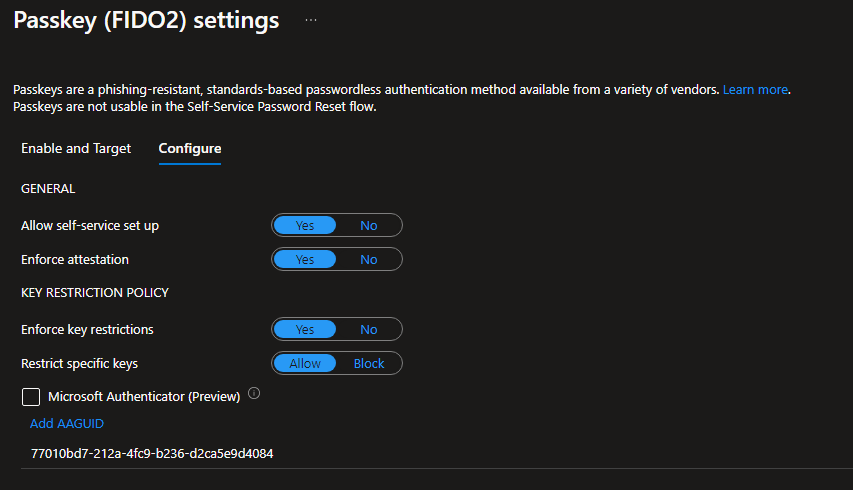
Enforce the Security Key to be used when signing in
Create the Authentication Strength
Go to Protection > Authentication Methods > Authentication Strengths
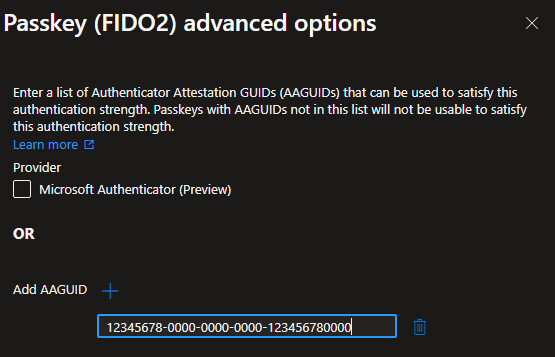
Create a new Authentication Strength. My Strength only contains the Passkeys (FIDO2) option.
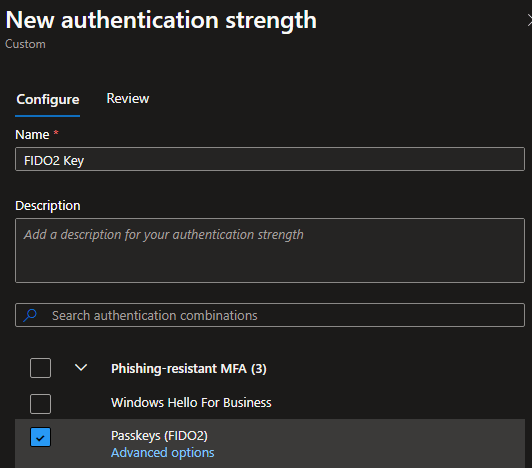
Add the required AAGUID as we added earlier and hit Save
Create the Condition Access Policy
I’m assigning this policy to my Break Glass account when accessing all cloud apps.
And setting the Grant section as below.

Now it’s pretty much done for the Admin end.
Account Configueration
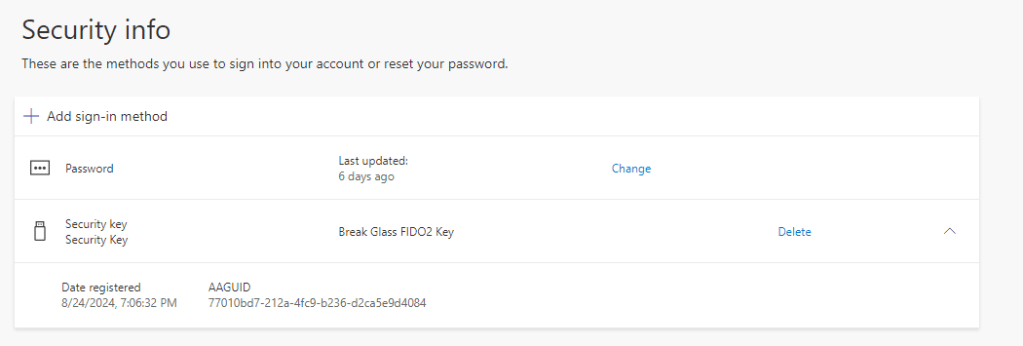
Login to https://mysignins.microsoft.com/ from the breakglass account and go to Security Info.
When you go to Security Info, it will prompt you to register for MFA as you are accessing an area where bad actors can change MFA methods maliciously. This MFA will be used to safeguard this security option.
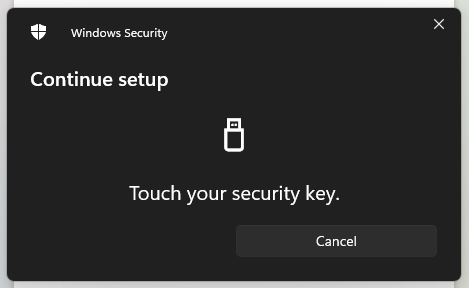
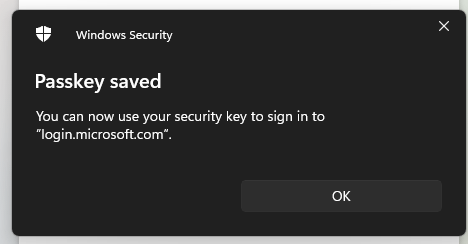
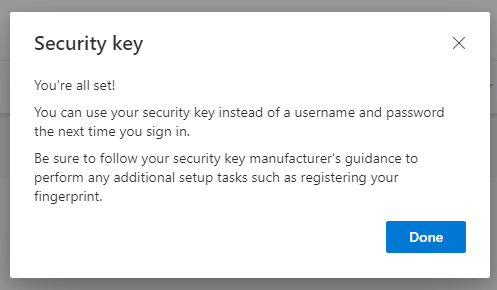
Add a sign-in method > Choose a method > Security Key > Add > Next

Select USB device
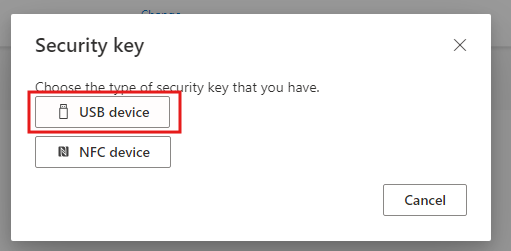
Plug the key press Next and Press OK

Press OK


Enter a preferred PIN.


Account Login Process
When login to the portal later, enter the UPN and it will direct you to the below screen
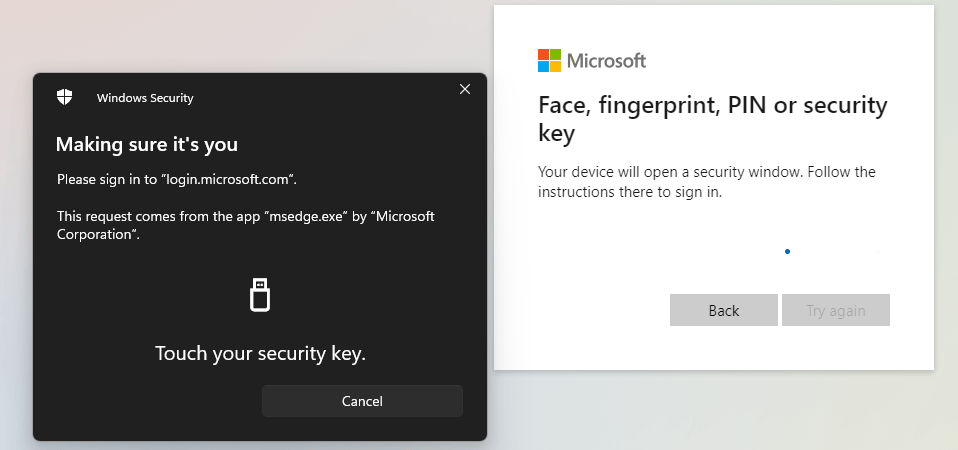
Followed by the PIN number and then it will open the portal for you.
Now that this is done, the second recommendation Microsoft is making is for the Service Accounts that are excluded from the MFA to require a Conditional Access Policy.
Plan the changes for the Service Accounts
As mentioned above, you may use Service Accounts without MFA today to authenticate services within Azure and it will simply have the Username (UPN) and the password in the configuration with the specific role/ access assignment.
In Microsoft Entra, workload identities are applications, service principals, and managed identities.
Below sections are straight from Microsoft documentation.
The recommended task for the Service Accounts is the use of Workload Identities as they will not be captured during the enforcement. Also, this is the modern way of using identities in the right way.
Again, this is not an overnight exercise. Understand the applications, services, and automation that use Service accounts and verify whether they are excluded from the MFA required policy.
A workload identity is an identity you assign to a software workload (such as an application, service, script, or container) to authenticate and access other services and resources. The terminology is inconsistent across the industry, but generally a workload identity is something you need for your software entity to authenticate with some system. For example, in order for GitHub Actions to access Azure subscriptions the action needs a workload identity which has access to those subscriptions. A workload identity could also be an AWS service role attached to an EC2 instance with read-only access to an Amazon S3 bucket.
A Workload Identity is an identity that allows an application or service principal access to resources, sometimes in the context of a user. These workload identities differ from traditional user accounts as they:
- Can’t perform multifactor authentication.
- Often have no formal lifecycle process.
- Need to store their credentials or secrets somewhere.
🔗Check this URL and specially the video in it to get a better understanding of the Managed Identity creation process.
https://learn.microsoft.com/en-us/entra/identity/managed-identities-azure-resources/overview
Wrapping Up
All in all, this is a pretty serious change, and will make sure the accounts are protected with that mandatory layer of security. Preparing for this is essential as it has many moving parts to it. Get the stakeholders together, discuss the consequences, and start to make the necessary changes soon before it’s too late.
Discover more from EMS Route
Subscribe to get the latest posts sent to your email.
 EMS Route