
This is blog post 1 of the Browser Security With Microsoft Intune series. I wanted to dedicate this article to browser extensions. This is something we all know dearly, but can pose issues in a working environment if it’s not managed properly.
- The Issue
- Past Browser Extension-Related Incidents
- Create the Policy
- Key Settings to Consider When Creating a Policy
- How to Find the Extension ID?
- Wrapping Up
The Issue
These are some troublemakers that AppLocker or Windows Defender App Control can’t block. And frankly, they are freely available to download and users with no admin rights can download and install them as they wish.
These extensions have been one of the major issues in the Security world where the advisories try to fool users into downloading and installing malicious extensions that will allow them to exploit the environment and your critical systems. While browser extensions will help in your daily work such as a Password Manager, Ad-Blocker, etc. only one nasty extension can bring chaos.
So how do you block them? Traditionally GPOs will come to your help but the process is not easy and not all the latest settings are captured. Incoming Microsoft Intune. Intune capabilities are being added every day and this.
Past Browser Extension-Related Incidents
May 2023, independent cybersecurity researcher Vladimir Palant unearthed a Chrome extension called PDF Toolbox. Despite its impressive user base of more than 2 million users and high ratings, the extension was caught loading arbitrary code from suspicious websites onto every webpage viewed by the user.
In July 2023 IBM Security Lab reported a spike in malicious Chrome extensions specifically targeting Latin America. These weren’t just random acts of cyber-vandalism; they focused on financial institutions, booking sites, and instant messaging services. IBM even identified a new malware, called Predasus, designed to inject malicious code via these rogue extensions.
Ref: https://www.linkedin.com/pulse/malicious-browser-extensions-hidden-security-risk-osibeyond-pdbcc/
Recent incidents like DataSpii and the Nigelthorn malware attack have exposed the extent of damage that malicious extensions can inflict. In both cases, users innocently installed extensions that compromised their privacy and security. The underlying issue lies in the permissions granted to extensions. These permissions, often excessive and lacking granularity, allow attackers to exploit them.
Ref: https://thehackernews.com/2023/12/new-report-unveiling-threat-of.html
Create the Policy
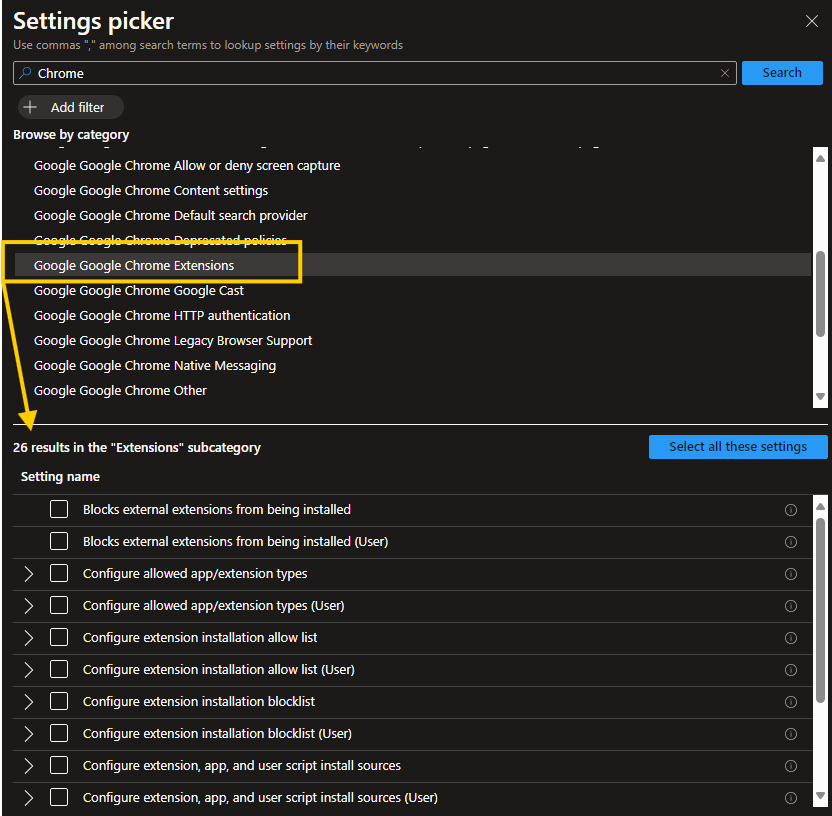
Microsoft Edge and Google Chrome browser settings can be seen in the Settings Catalog where other browsers like Mozilla Firefox policies need to be adopted via the admx file. I will demonstrate the Edge and Chrome settings.
Microsoft Edge

Google Chrome
Mozilla Firefox
Firefox settings are not available in Intune at the time of writing. However, there is a GPO policy template you can import to Inune to use. This is available for Windows.
https://github.com/mozilla/policy-templates/releases
Devices > Configueration > Import ADMX
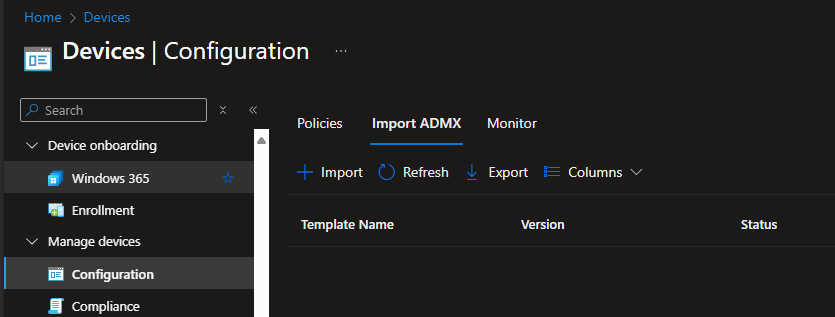
Map the Mozilla ADMX and the ADML file downloaded from the GitHub location 1st

Now upload the Firefox ADML and ADMX files
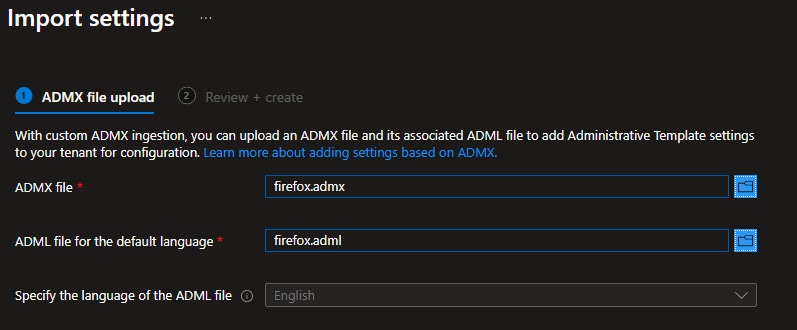
Once they both show as Available

Create a new device policy in Intune and select Imported Administrative templates (Preview) option and create the policy.

Look for the Extensions and you’ll see the below policy settings

Key Settings to Consider When Creating a Policy
- Blocks external extensions from being installed
- Configure extension installation allow list
- Configure extension installation blocklist
- Configure allowed app/extension types
How to Find the Extension ID?
Go to the extensions page in the browser > Click on the extension > Check the address bar > URL ends with the ID.

Wrapping Up
While the extensions can be useful, it can pose Security threats as well. Managing them via an MDM (Intune in this case) will be your best option as you don’t want your users to be victims of those phishing attacks.
Discover more from EMS Route
Subscribe to get the latest posts sent to your email.
 EMS Route