With the latest developments in Entra ID Protection space, Conditional Access Policies got a bit of a facelift with the Authentication Flow control feature. Still, in Preview, Device Code Flow and Authentication Transfer are the features introduced with the Authentication Flows.
I want to cover the Authentication Transfer process in a different article so this will be all about the Device Code Flow.
This article is mainly about going through the Device Code flow controlling and simplifying the technicality behind them. Let’s jump in.
Why Use Device Code Flow
Device Code Flow was introduced some time ago and was used on various occasions to complete the authentication process for the devices that were not able to complete it by themselves. However, Device Code Flow is considered as a High-Risk activity as this can be compromised and can be used in phishing activities when used in unmanaged devices.
There are devices that won’t provide a browser for various reasons or due to the lack of input devices. Examples are Smart TVs, IoT devices, digital signages, shared devices such as conference room devices, devices that use a command line, and other devices. Incoming, Device Code Flow.
Device Code Flow Process
Typically, an interactive authentication with Entra ID requires a Web Browser. During the authentication process, it requires the user to open a web browser from an internet-connected device to complete the process and to go through the Multi-Factor Auth.
The Protocol Diagram Goes as below.
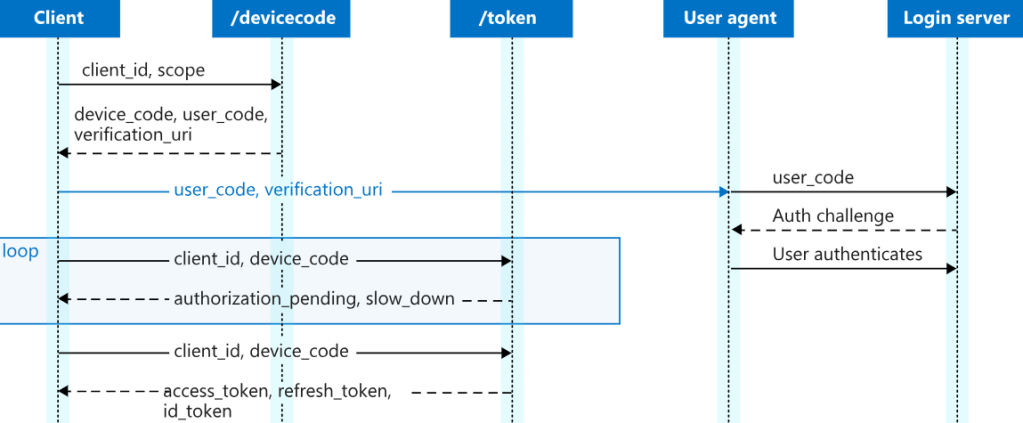
- Device or app provides the code
- User can then go to https://microsoft.com/devicelogin from a mobile phone or from a different device and provide the code
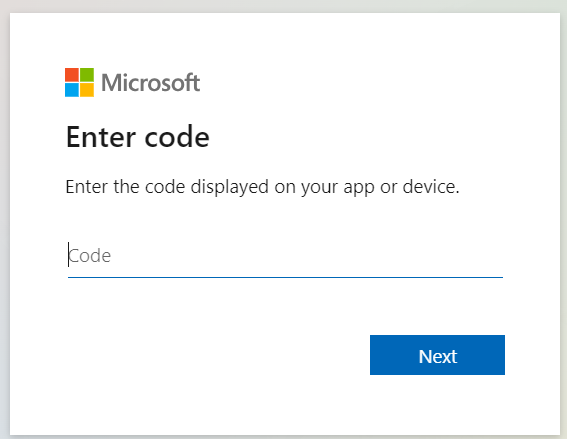
- During the Auth Challenge, It goes through the standard login process along with the Multi-Factor Authentication on that external browser.
But I have MFA to Secure My Login Already
The new Conditional Access Policy feature lets you to control this feature in a way where you can use only managed devices to complete the authentication flow when using an external device. This is great in many ways. One good reason is this can stop phishing activities that can happen when using unmanaged devices.
Example: You can create the Conditional Access Policy to be applied whenever a Device Code is in use. Or be specific with an OS platform, location, and grant only if the device that completes the authentication is Entra Hybrid Joined or Compliant, etc. etc.
Basically, it will open up many avenues when you use the option with the CA Policy.
How to Create the CA Policy?
Example – Completing the Device Code Flow in an Android-based IoT device that uses a CLI only. In this case, if you know the device location, you can limit the code flow and only allow Android OS-based devices to send using this method.
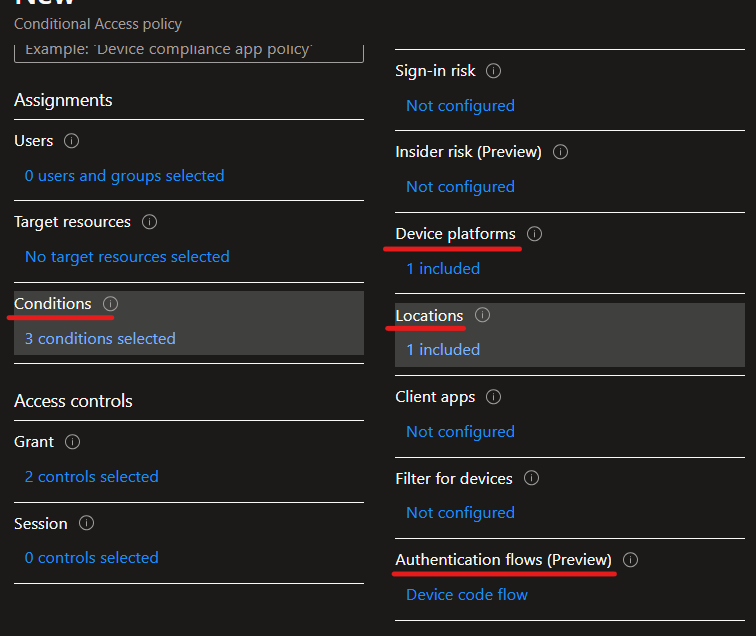
Setting up Device Code Flow, Authentication Flows Condition
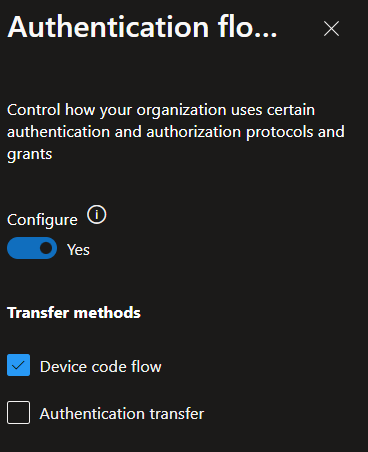
Once the user meets all those conditions, the CA policy will move on to the Grant section to identify the state of the device they are planning on completing the authentication.
Is the external device that’s completing the authentication is Hybrid Joined? Compliant? and so on.
Completing this will grant a successful login and you will know the authentication process was controlled from start to end.
Now, let’s look at the next feature – Authentication Transfer
Protocol Tracking – Using Client Apps in your Condition Whenever Possible!
This is important when using the policy so the Conditional Access Policy knows to apply the condition only for that app rather than any app on the device. This can definitely narrow down the Device Flow to a specific app only.
What’s the usage?
This will not allow if you are trying to use another application in a different tab for example. It will be blocked as the previous session is protocol-tracked and have to specifically login in to the new session.
- You configure a policy to block device code flow everywhere except for SharePoint.
- You use device code flow to sign-in to SharePoint, as allowed by the configured policy. At this point, the session is considered protocol tracked
- You try to sign in to Exchange within the context of the same session using any authentication flow not just device code flow.
- You’re blocked by the configured policy due to the protocol-tracked state of the session
Sign-in Logs
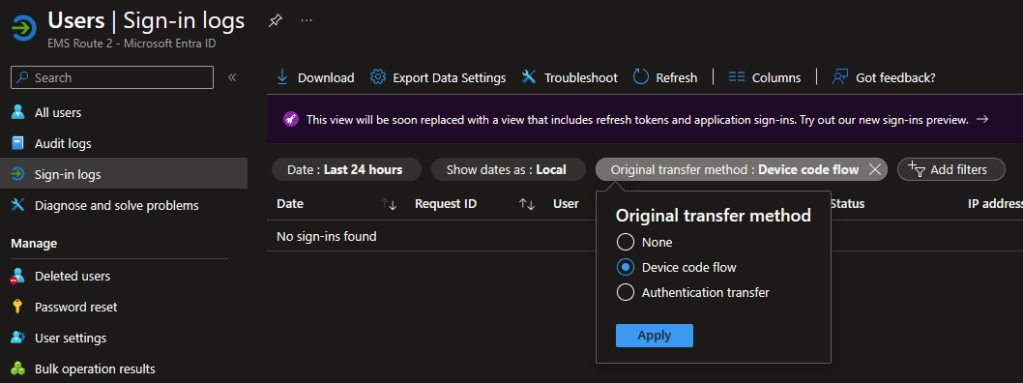
New filters have been introduced with this new Conditional Access feature. Original Transfer Method. This will allow the admins to identify the sign-in process of the instance and for troubleshooting purposes.
Wrapping Up
This will give the much needed controllability to the Device Code flow process and can secure the flow from start to end. For more information on Device Code Flow, look for the below URLs.
- https://learn.microsoft.com/en-us/entra/identity-platform/scenario-desktop-acquire-token-device-code-flow?tabs=dotnet
- https://learn.microsoft.com/en-us/entra/msal/dotnet/acquiring-tokens/using-web-browsers
- https://learn.microsoft.com/en-us/entra/identity-platform/v2-oauth2-device-code
Cover Image: From MS Learn
Discover more from EMS Route
Subscribe to get the latest posts sent to your email.
 EMS Route